
LaunchBay Help Glossary
This glossary defines common terms used throughout LaunchBay to help teams better understand the platform and how each area contributes to your project success.
🧭 Client Experience & Portal Setup
Start here to understand what the client sees and how your team guides them through the journey.
The secure, branded interface that your clients access to complete tasks, upload files, and stay updated on project progress. It's login-less and customized with your branding.

All Client Portals include 6 default pages in the sidebar of the portal- Home, [Projects], Task, Files, Messages, and Invoices.
Project Page
Custom tabs that apply per project/template. You can use different Portal Pages to show forms, videos, documents, or trackers—all in one place. Located at the top of a project in a portal.
🛠️ Project Setup & Standardization
Next, focus on how your team creates, reuses, and scales client projects.
A structured workspace in LaunchBay that contains all stages, tasks, portal pages, messages, and files related to a single client engagement.

A pre-built configuration of a project that includes tasks, stages, and pages. Use templates to quickly launch standardized client workflows and save time.

A stage is a group of related tasks that represent one part of a project—like “Onboarding,” “Design Review,” or “Launch Prep.” Stages help organize your workflow and allow clients to understand their journey through the project.

An individual, actionable item within a project. Tasks can include things like file uploads, form submissions, contracts, and more. Every task includes details like a title, due date, status, and assignee. Tasks are either assigned to a client (Client Task) or to your internal team (Team Task).

The interface used to create and customize tasks. It includes content modules like forms, files, proofs, contracts, invoices, and more.

Portal Preview
Allows team members to view a live preview of what the client will see in their LaunchBay portal, ensuring everything is clear and branded correctly.

⚙️ Workflow Automation & Efficiency
These tools reduce manual work and create consistent experiences.
Custom rules you can set up to eliminate repetitive work. Automations are triggered by specific actions—like when a client submits a form or completes a task—and automatically perform follow-up actions like assigning new tasks or sending a message.

Reusable data fields (like Client Name, Project ID) that can be applied to contracts, stages, or tasks for dynamic content population across your workspace.

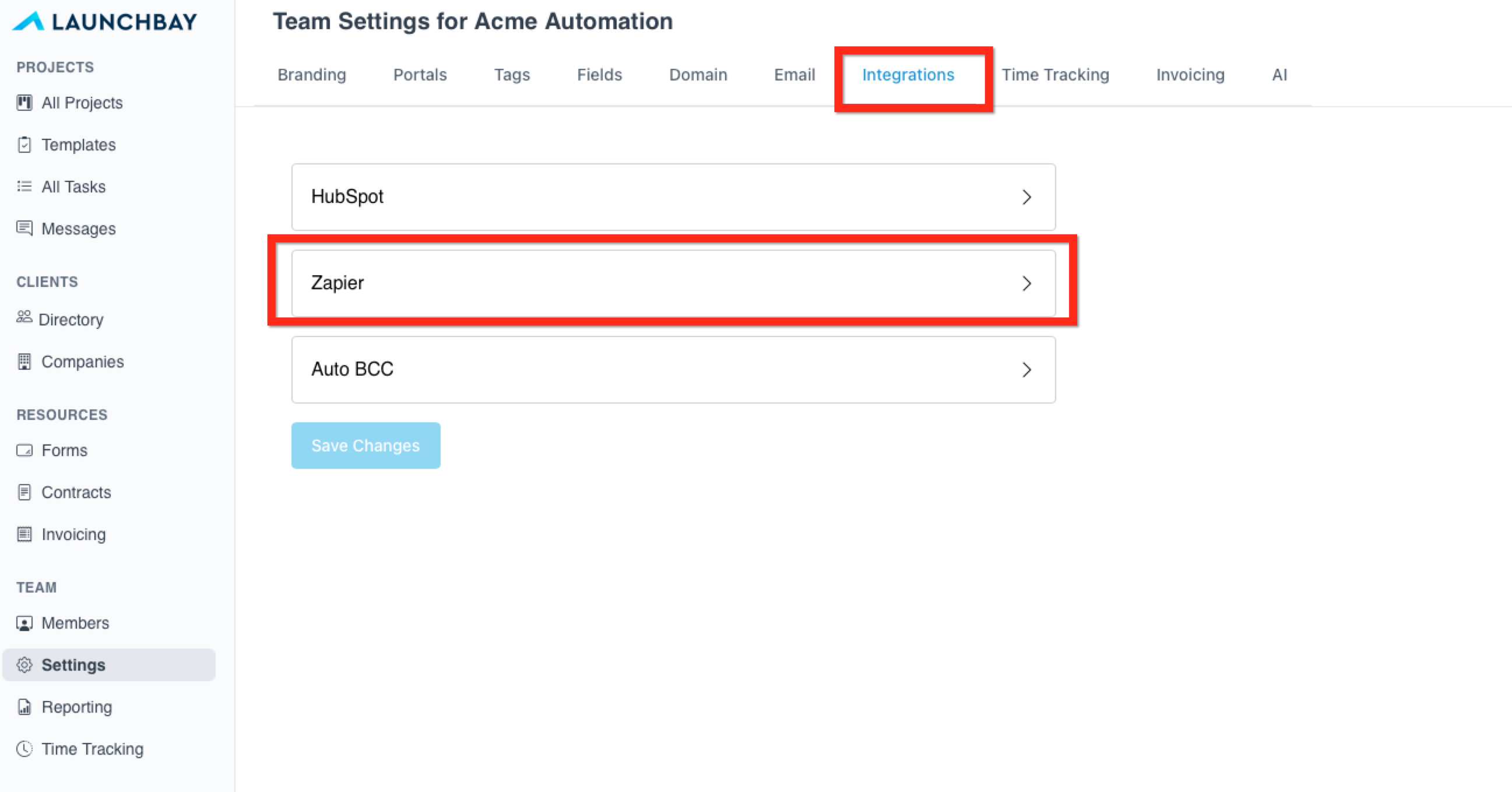
Connect LaunchBay with over 7,000 other apps using Zapier. Automate workflows between LaunchBay and CRMs, email tools, spreadsheets, and more.
-
A Zapier trigger is an event in LaunchBay (like a new form submission) that starts a workflow. A Zapier action performs an outcome in LaunchBay (like creating a project or assigning a task).
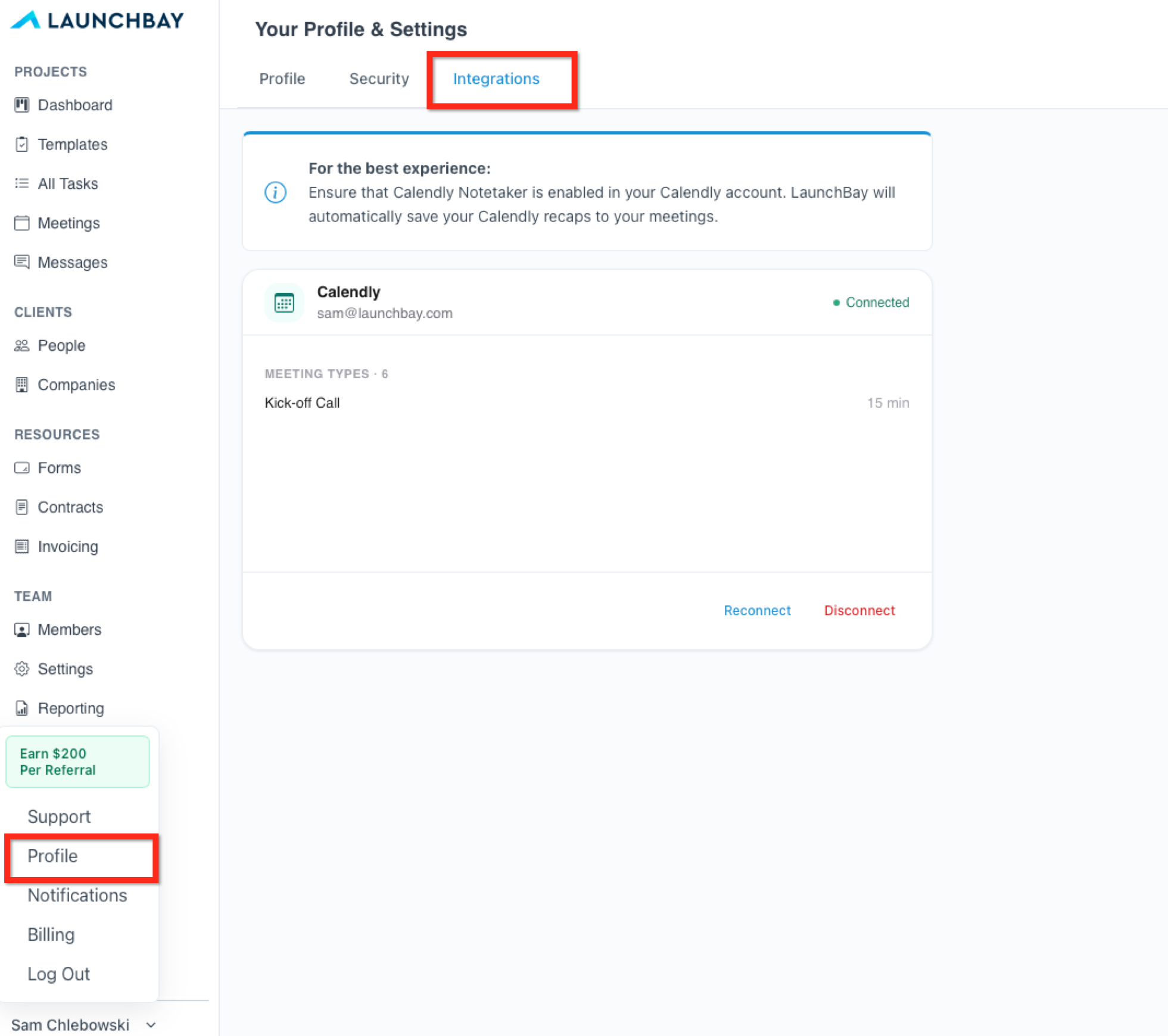
LaunchBay's Calendly integration lets team members request meetings from clients directly within a project task. When connected, clients see an embedded scheduler in their portal task and can book a time without leaving LaunchBay. Meetings are automatically created in both LaunchBay and Calendly on booking. Connected at the individual team member level via Profile → Integrations.
LaunchBay’s HubSpot integration automatically converts closed deals or new customers into active projects by creating a project from a template, inviting the client to their portal, and assigning onboarding tasks.

LaunchBay's native Slack integration allows you to connect your Slack workspace and receive automatic notifications when project stages are completed.

📊 Tracking & Visibility
Keep projects on track with visibility into status, workload, and engagement.
A centralized view for your internal team that displays all your current projects, their status, and activity. It acts as your command center to track what needs action and attention.

A centralized workspace to view and manage all tasks across your projects. A unified hub to track progress, apply filters, and prioritize your work more efficiently.

A dynamic score shown in the Projects Dashboard that reflects the overall momentum of a project. It factors in task completion, client engagement, and recent activity.

Tags
Flexible labels you can apply to projects and tasks to improve filtering, control workflows, segment reporting, and trigger automations.
- Project Tags are applied at the project level to support clear organization and more detailed segmentation.
- Task Tags are applied to individual tasks within a project and can also be used to drive automated assignment.

📬 Communication & Client Data Management
How your team communicates and tracks information with clients.
The centralized inbox where your team manages all client communications—including chat messages and task comments. You can assign team members to messages and track which ones still need a response.

Your master database of all client contact details and company associations. Easily manage, edit, and reference clients across all your projects.

Easily review meeting records added to your project—including summaries, notes, and optional AI-powered recaps highlighting key decisions and next steps.
Internal-only notes stored inside each project for context, reminders, or sensitive details that shouldn't be visible to clients.

🧾 Forms, Files, Payments & Approvals
Everything needed to collect, approve, and bill for work.
Custom forms added to tasks to collect structured client information—supporting everything from onboarding to creative briefs and approvals.

A task type used to collect visual feedback, review, and approvals on creative files such as images, videos, or PDFs. Includes annotation tools to support client collaboration.

Upload a PDF, place signature and fields where they’re needed, and send it for e-signature in minutes. LaunchBay keeps everything organized and lets you see exactly when it’s completed

Send and collect payments from clients directly inside LaunchBay. Attach invoices to tasks for milestone billing and link with Stripe to streamline checkout and payment processing.

Allows team members to log billable hours on a per-task basis. Supports custom time categories and detailed reports that can be viewed or exported for billing and internal insights.

👥 Team & Role Management
Who’s doing the work—and what clients can (and can’t) see.
An internal user of LaunchBay. Depending on their assigned role, they can manage projects, create automations, build templates, and complete tasks.
An external user invited to a LaunchBay project. Clients access their individual, branded portal where they can view project progress, complete assigned tasks, upload files, sign contracts, and communicate with your team.
A client user with limited access. Guests can only view and complete tasks assigned directly to them—they do not see full project details or chat threads.