
Slack Integration in LaunchBay
If your team lives in Slack, staying on top of client activity in LaunchBay shouldn't require constantly switching tabs. By connecting Slack to LaunchBay, you can keep your team informed and your projects moving.
How to Connect Your Slack Workspace
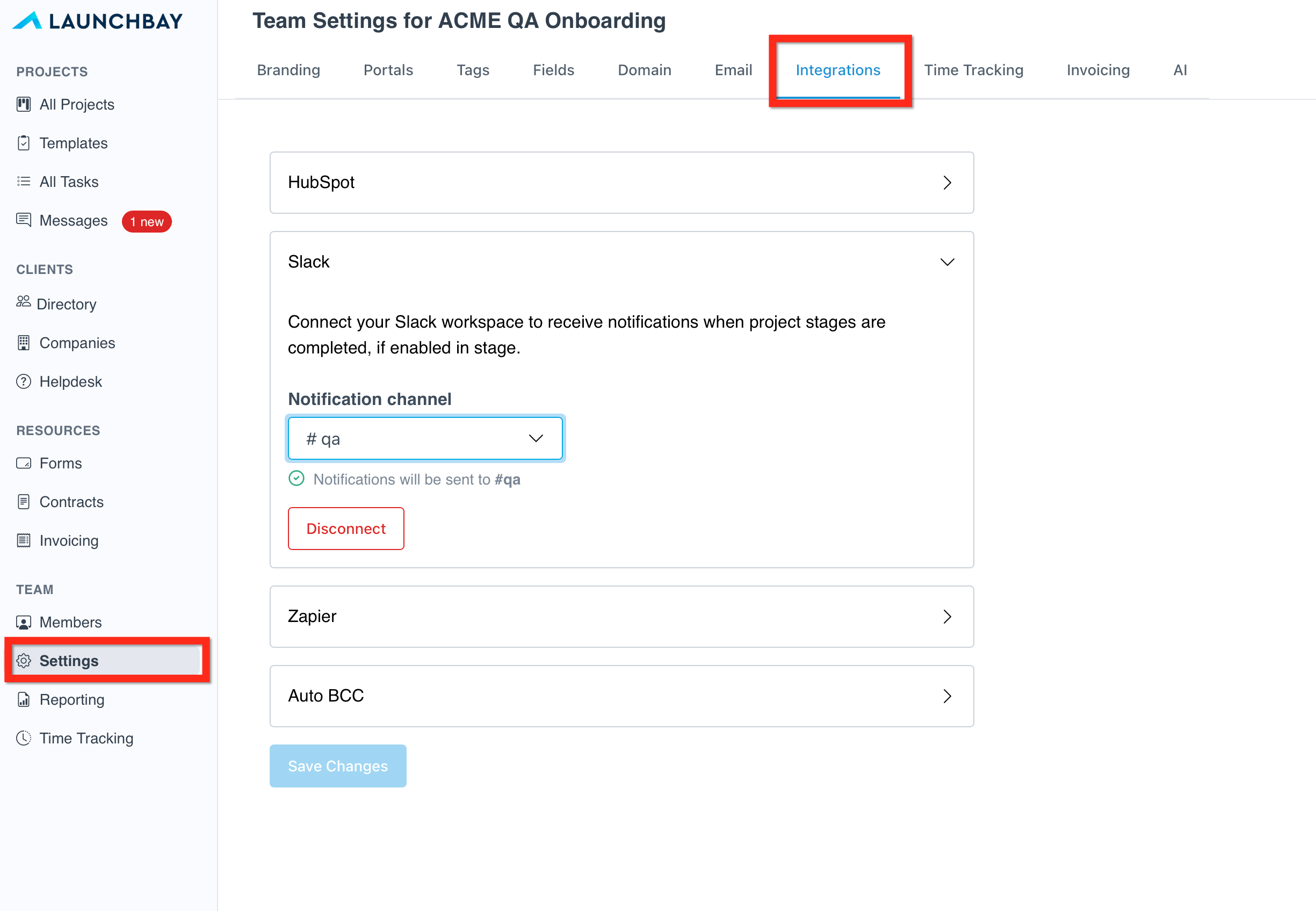
In LaunchBay, go to Account Settings > Integrations and expand the Slack section. Click "Connect to Slack Workspace" and follow the prompts to authorize the connection.
Once connected, select the Slack channel where you'd like stage updates to be posted—such as #launch-team or #project-updates.
Enabling Stage Notifications in a Project
Once your workspace is connected, you can turn on Slack notifications for individual stages within any project or template.
- Open the project you want to configure.
- Click the three dots (⋯) next to the stage you'd like to receive notifications for
- Go to Settings > Notifications
- Check Slack (and Email if you'd like both).
- Click Save.
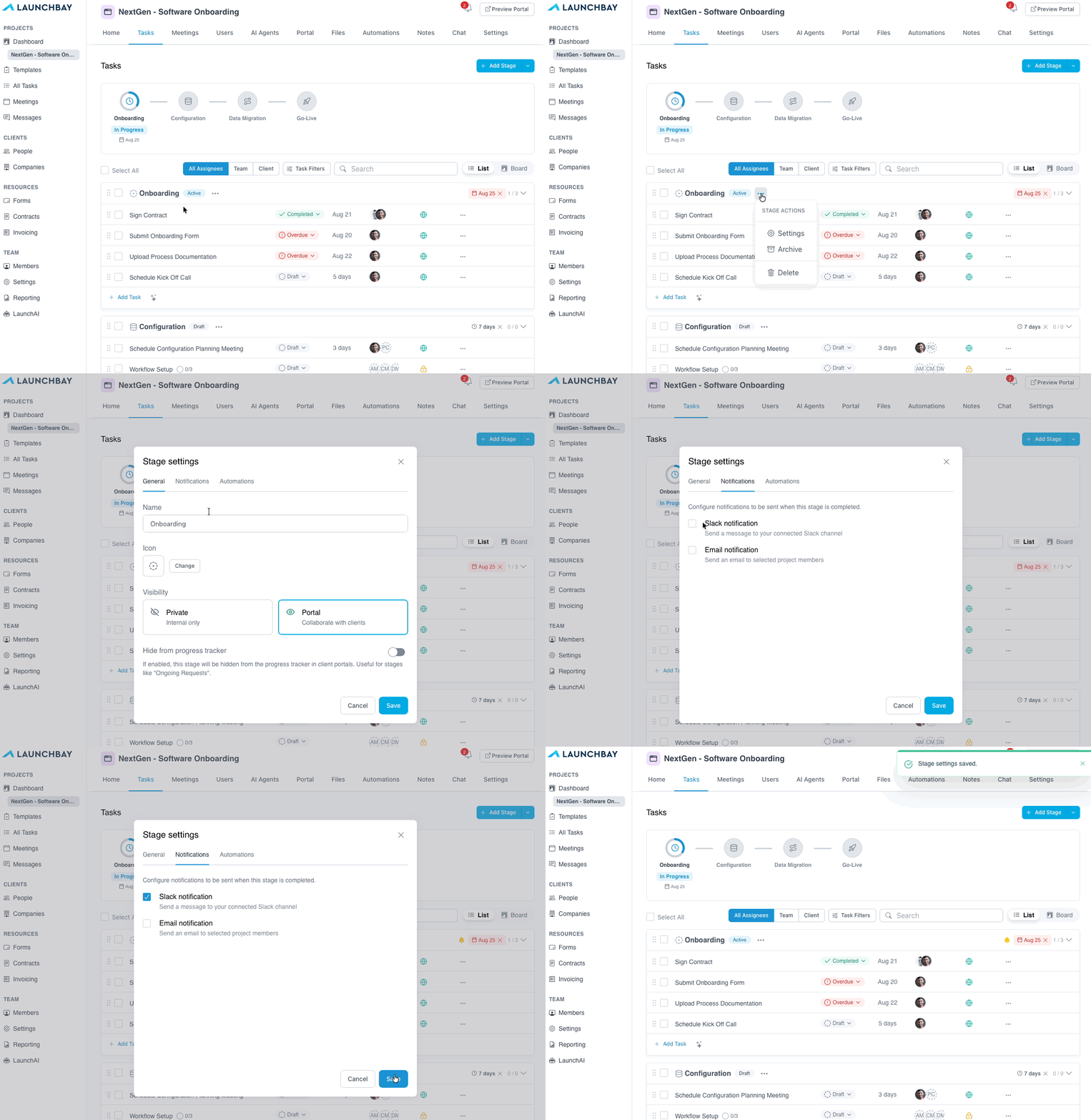
From that point on, whenever that stage is marked as complete, LaunchBay will automatically post an alert to your connected Slack channel, keeping your team informed without any manual updates.
👋 Tip: Enable Slack notifications on your most critical stages—like final approvals or project kickoffs—so your team always knows when key milestones are hit.