
Client Portals
In LaunchBay, the way clients complete tasks and view information or updates related to the projects you’ve invited them to is through their client portals.
Portals in LaunchBay are login-less for clients to access, branded to your business, and can be customized to give clients access to additional information, websites, or software they’ll need throughout a project.
This article will explain how client portals work and the options you have for customizing them.
👋 Tip: Your team can display a banner announcement at the top of all client portal account-wide. To set this up, go to Settings → Portals.
How Client Portals Work
When clients access their portals — either by clicking a magic link or by logging in with their username and password — the pages in the sidebar on the left allow them to view information and perform certain actions within the projects you've invited them to.
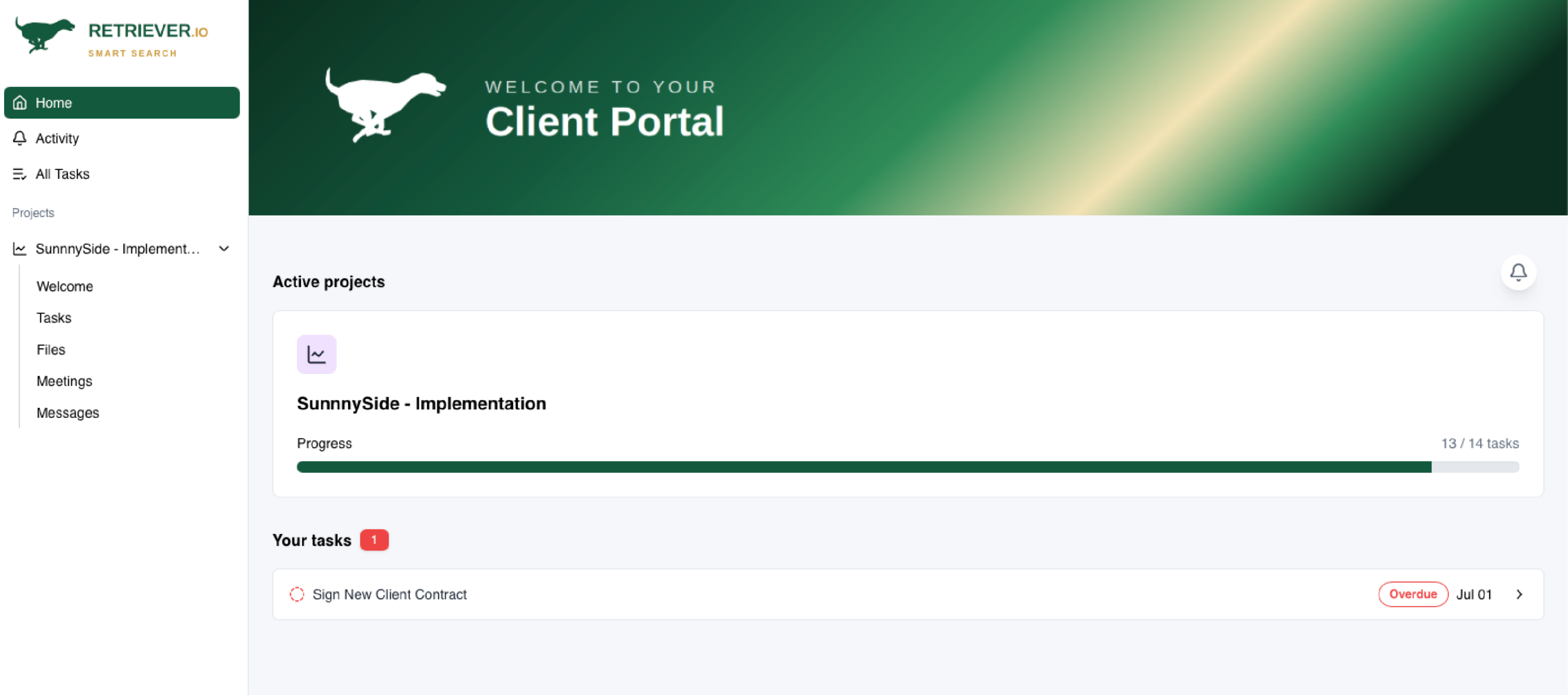
By default, the sidebar of all portals includes 4 pages.
- Home: Each client's "Home" page highlights any outstanding tasks your team has assigned that they must complete, along with information about the project(s) you invited them to.
- Activity: A dedicated page to view activity history and unread project notifications.
- All Tasks: On the "All Tasks" page, clients can view and complete all tasks that your team assigns them across all projects. When clients access this page, only the tasks your team assigned them are displayed.
- Invoices: Any active invoices assigned to the user will display here. If there are no active invoices, this tab will be automatically hidden.
Beneath the Projects section, clients will see a list of all Active or on-hold projects they have access to. From there, they can open any project to view all portal tabs and related tasks—regardless of assignment—along with the project’s Progress Tracker and any custom portal pages you’ve added.
Each project will also include 4 standard pages
- Overview: Each project includes an Overview page that displays the Progress Tracker, your team members assigned to the project, any welcome content you’ve added, and shared project resources (if enabled).
- Tasks: On the "Tasks" page, clients can view all tasks related to the project (regardless of whether or not they are assigned to them), along with a project progress tracker that provides clarity on the project's current status.
- Files: The "Files" page of a client's portals allows them to access all files associated with the projects your team has added them to. You can rename this page if needed, and use the toggle to show or hide the page.
- Meetings: The "Meetings" page gives clients a dedicated space to view all scheduled and past meetings for the project. Clients can see meeting status, call-in details, and any agenda items or summaries you've chosen to share. Meeting requests will also appear here as well as on the project Tasks page.
- Messages: From the "Messages" page, clients can access the chat interface for each of the projects you've invited them to, sending new messages or replying to previous messages sent by your team. You can rename this page if needed, and use the toggle to show or hide the page.
📢 Note: Want to make it easy for clients to submit requests on their own? You can embed custom forms directly inside Portal Pages. When a client fills out one of these forms, LaunchBay will automatically create a task and assign it to the right person on your team. Learn more about Client Requests via Portal Forms here.
How to Create Custom Project Pages
In your client portals, there will likely be times when you want to give clients access to information, dashboards, websites, or other software apps.
While the nine default pages clients have access to in the sidebar of their portals cannot be added to or customized, the Project pages clients can access within each project you invite them to can be fully customized on a per-project or per-template basis.
To learn more about creating custom Project Pages, click here.
Inviting Clients to Portals
When you invite clients to a LaunchBay project, they will automatically receive access to their portal, where they can access the tasks, information, and Project Pages associated with it.
👋 Tip: Click here to learn about the different ways you can invite clients to projects.
📢 Note: Project owners will get notified the moment clients from their projects log into their portal for the first time—eliminating back-and-forth about access.