
AI Meeting Summaries
LaunchBay's Meetings feature gives your team a dedicated space to log, manage, and share meeting details directly within each project. Combined with AI-powered summarisation, you can turn transcripts into structured recaps and share key details with clients — all without leaving LaunchBay.
👋 Tip: Want to automate your note‑taking even further? Learn how to integrate your note taker with LaunchBay via Zapier.
Accessing Meetings
Each project now has a dedicated Meetings tab in the project navigation. Click "Meetings" from the top of any project to view, create, and manage meetings associated with that project.
Clients can also view meetings in their portal if you have the Meetings page enabled. To enable it, go to the Portal pages settings within the project and toggle on the Meetings page.
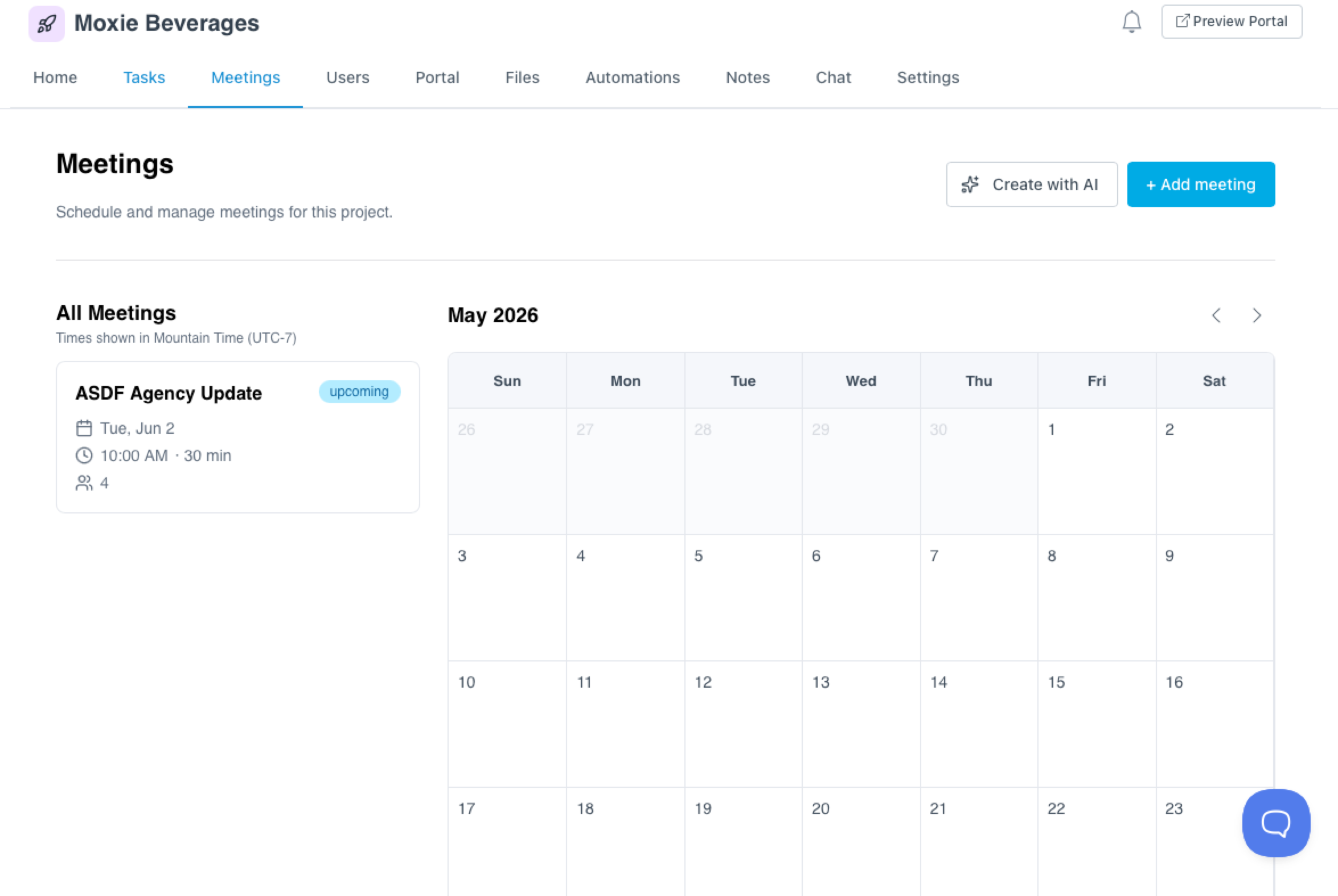
📢 Note: The Meetings page is configured per project. You can also set it as a default in your project template so it's enabled automatically for any new projects created from that template.
All Meetings View
The All Meetings view is now available from the left sidebar. This gives you a centralized view of meetings across all of your projects in one place, making it easy to track upcoming and past meetings without opening each project individually.
Creating a Meeting
To create a new meeting, click "Add Meeting" from the Meetings tab. You can fill in the meeting details manually, or click "Create with AI" to describe your meeting in plain language — LaunchBay will automatically generate the meeting details for you.
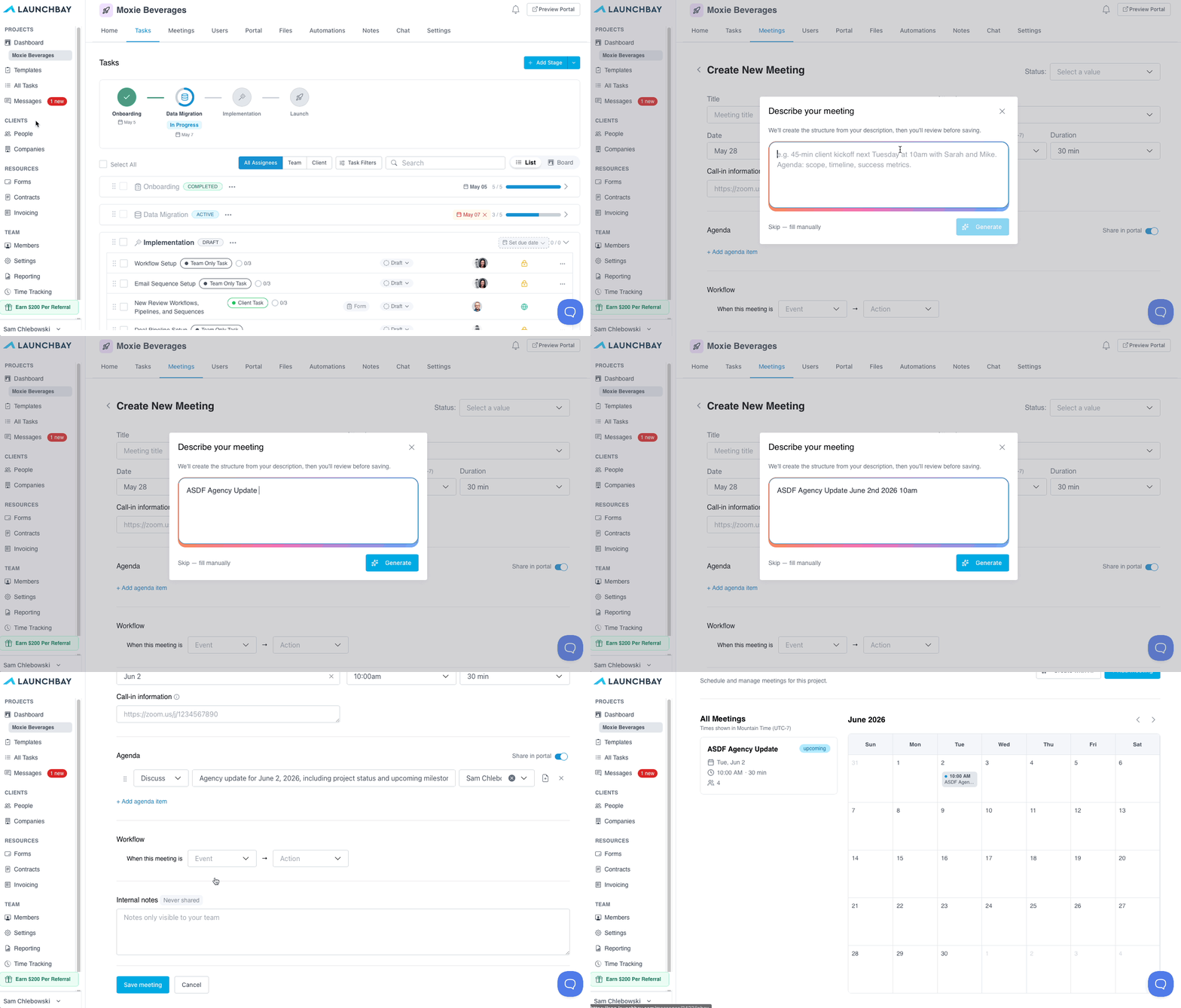
Each meeting includes the following fields:
- Status — Track whether the meeting is upcoming, in progress, or completed
- Title — The name of the meeting
- Date — The scheduled or actual meeting date
- Start Time — The time the meeting begins
- Duration — How long the meeting runs
- Call-in Info — Add a link to the video call or dial-in details
- Agenda — Build out a structured agenda with individual line items. Each agenda item can be assigned to a specific team member or client. Toggle the agenda on or off to control whether it is visible to clients in their portal.
- Internal Notes — Add notes that are visible to your team only. Internal notes are never shared with clients.
Completing a Meeting & Adding a Transcript
Once a meeting has taken place, update the status to Completed. This unlocks two additional sections:
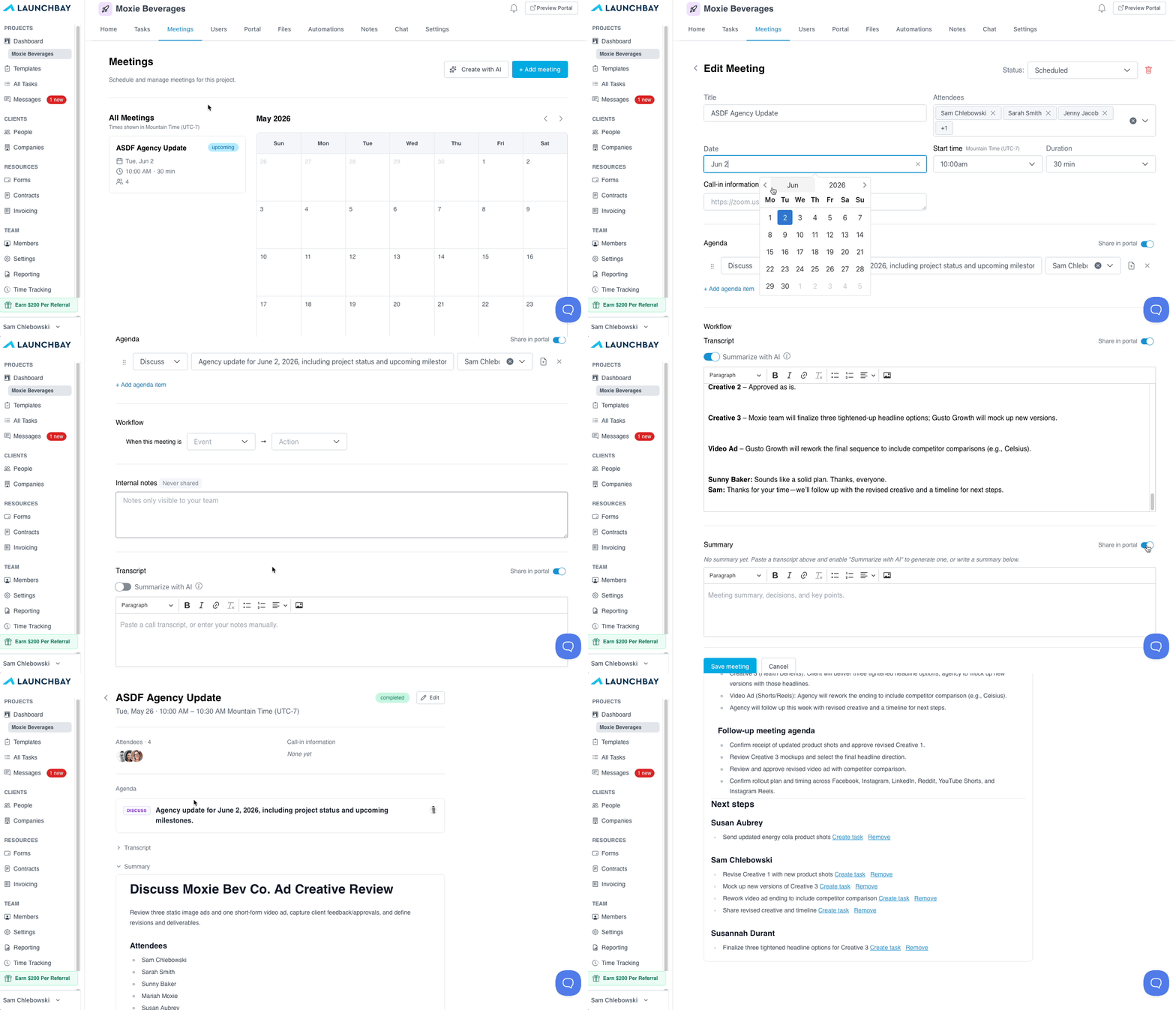
Transcript
Paste or add your meeting transcript here. Once added, you can use LaunchBay's AI to summarise the transcript automatically — click the "Summarise with AI" toggle and the summary will be populated in the Summary section below.
Summary
The summary section contains the AI-generated or manually written recap of the meeting. You can toggle this section to be visible to clients in their portal, giving them a clear record of what was discussed and agreed upon.
Follow-Up Tasks
When a meeting is marked as completed, LaunchBay will prompt you to create a follow-up task. A task editor panel will open directly from the meeting, allowing you to build out the task with all standard task options — type, assignee, due date, and more. You can also select which project stage the task should belong to. This keeps post-meeting action items tied directly to the meeting and project without having to navigate away.
Meeting-Based Automations
Each meeting has its own automations editor, allowing you to trigger actions based on meeting events. To access it, open a meeting and click the Workflow tab.
From here, you can define a trigger condition and set an action — for example, automatically activating a follow-up task when a meeting is marked as completed.
📢 Note: Meeting automations are configured individually within each meeting. For project-based automations, learn more here.