
Projects Dashboard
In LaunchBay, the Projects Dashboard provides your team with a quick way to access the status, activity, and other important information about each project you manage in one centralized view.

This article will explain what information is accessible from the Projects Dashboard and how to use filters and bulk actions to manage projects more efficiently at scale.
👋 Tip: Projects now display a health score, helping your team quickly identify at-risk projects and prioritize accordingly. Learn more here.
Using the Projects Dashboard
To access the Projects Dashboard, click "Projects" from the sidebar on the left side of your LaunchBay account. When you open the Projects Dashboard, by default, you will see all active projects in your account.

The red badges in each project's "Activity" column tell you how much new activity happened since you last accessed that project. Clicking an activity badge will bring up the activity feed for that project.
Clicking on a project's title from the dashboard will bring you to its dashboard page, and the new activity notification badge will be automatically cleared.
The "Tasks" column in the Projects Dashboard displays a progress bar, with blue indicating the number of completed tasks and red indicating overdue tasks. Hovering over the red section of the progress bar will give you insight into which specific tasks in the project are overdue.

Clicking the three dots on the right side of any project in the dashboard opens a dropdown menu that allows you to perform actions on that specific project.

👋 Tip: Learn more about project statuses and client visibility here.
Using Filters
The Projects Dashboard includes a filter sidebar that lets you quickly isolate groups of projects based on task status, project status, tags, projects, templates, and project stages. You can apply any combination of filter categories at once to find exactly what you're looking for.
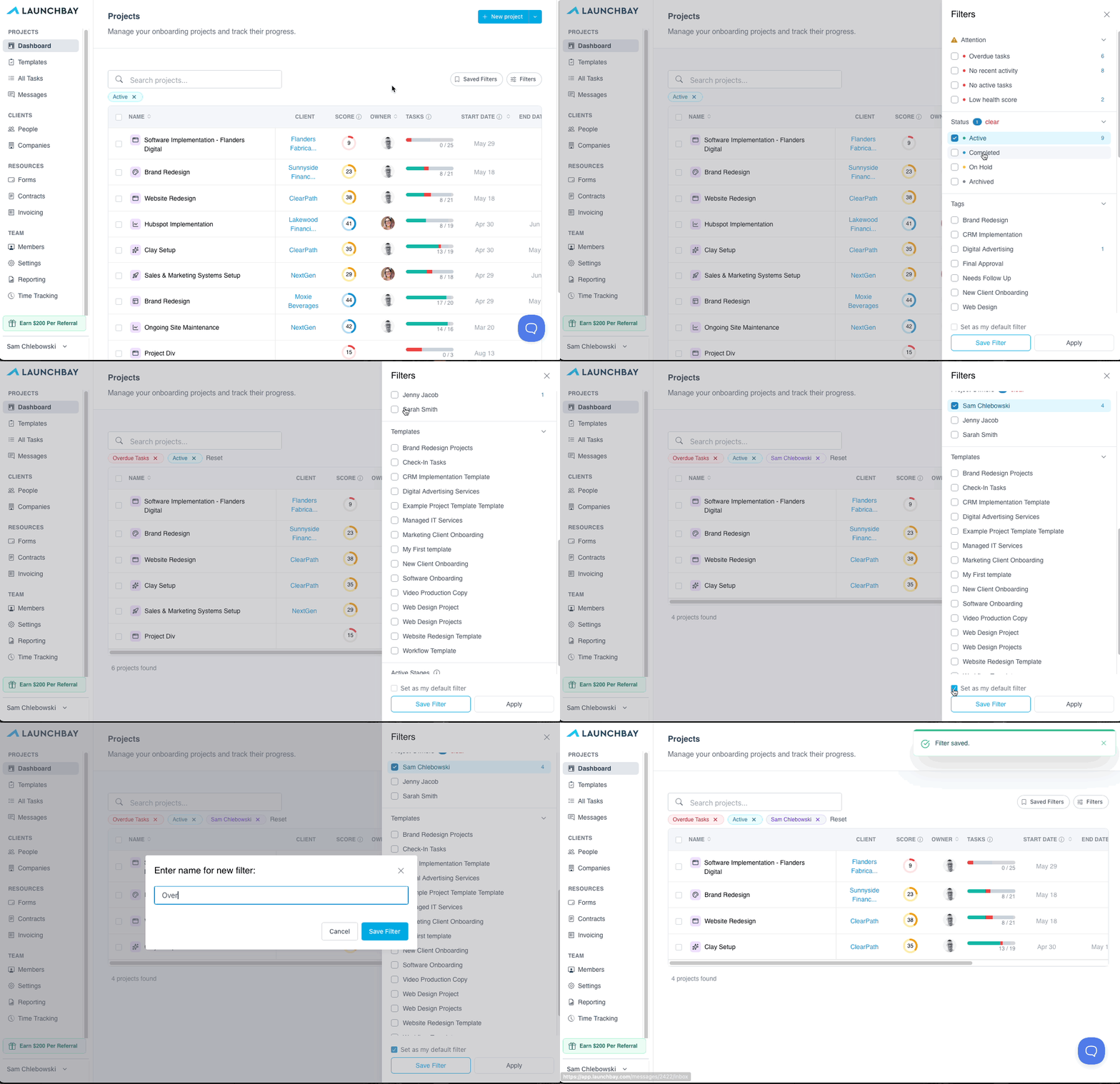
Clicking the "X" option in a filter category will remove the filter for that specific category while keeping any other filters you've set in place.
You can also set a default filter to load automatically every time you open the Projects Dashboard. To set a default, apply the filters you want, check "Set as my default filter" at the bottom of the filter menu, and click "Save Filter,". Your dashboard will always open to that filtered view.
👋 Tip: To use the Active Stage filter, start by selecting a specific Template. This narrows down the available stages and helps you quickly find the projects or tasks you’re looking for based on their progress within that template.
Saving Filters
Once you've configured a set of filters you use regularly, you can save them for quick access in the future. To save a filter combination, apply the filters you want, then click "Save Filters" and give your saved filter a name. Once you have saved filters, a "Saved" option will show on the Dashboard:

👋 Tip: You can favorite any project by clicking the star icon on its project card. Favorited projects will appear under a "Favorites" filter on your Projects Dashboard for quick access.
Using Project Bulk Actions
Using the "Bulk Actions" dropdown in the upper right corner of the Projects Dashboard, you can perform actions on multiple projects simultaneously without opening each project individually. To perform bulk actions from the Project Dashboard, click the checkbox next to one or more projects and then "Bulk Actions."

When used in combination with one or more filters, Bulk Actions can be especially powerful, as they let you do things like:
- Apply a tag to all projects with overdue tasks and remove it when those tasks are no longer overdue
- Add a new team member to all projects where you applied a specific tag
- Set the status for a group of projects to "Completed" when all tasks and stages are complete
👋 Tip: Click here to learn more about setting up project tags in your LaunchBay account.