
Using Project Stages
Project stages in LaunchBay enable you to organize related tasks into a single stage to help clients understand when, how, and why tasks should be completed.
As an added benefit, upon building stages into your LaunchBay projects, you can create automated workflows to ensure a seamless customer experience and reduce the number of manual tasks, emails, and follow-up meetings required of your team.
This article will detail everything you need to know about using Project Stages in LaunchBay and provide guidance on setting them up.
👋 Tip: Click here to learn more about setting up automations for project stages in LaunchBay.
How Project Stages Work
Upon creating a new Project in LaunchBay, you're automatically brought to the Tasks page of that Project and will see two buttons near the center of your screen to create a Project Stage or to use our AI Builder. To create a Project Stage, click the "Add Stage" button.

After creating your Project Stage and naming it, LaunchBay will automatically generate a stage icon used in the Project Progress Tracker. You can click the icon to open the icon library and update it if needed. To add work to the stage, simply click “Add Task” within the stage—any task you create here will automatically be assigned to that stage.

🔈 Note: If a stage contains one or more active tasks with no assignee, LaunchBay will display a notification on that stage alerting your team. This helps ensure nothing slips through without someone responsible for completing it.
Reordering Project Stages & Tasks
After creating Stages and Tasks within a LaunchBay Project, you can organize them in your client's portal however you'd like. Tasks can be dragged from one Stage to another, and stages can be re-ordered in whatever manner you'd like them to appear in your client's portal.

Stage Statuses
Once you've invited clients to a project and they begin completing tasks in their portal, the Project Stage statuses inform all project users how the project is progressing. The statuses are:
Active: Any Project Stage with at least one active task (i.e., tasks that have been assigned and sent to a client but not yet completed) will be automatically set to the “Active” status and displayed with a breakdown in your Project Dashboard.

Completed: When all tasks in a Stage are complete, the status of that Project Stage will automatically update to “Completed.” Public tasks within a Stage marked as “Completed” are visible to clients in their portals.

Archived: If you no longer need a Stage, you have the ability to archive and hide it from clients. To do that, click the three dots next to the Stage's name and select "Archive".

Private Stages
If you need to keep a stage internal, you can mark it as private. Private stages are hidden from the Project Progress Tracker and the client portal entirely—only your team can see them.
To make a stage private, click the three dots next to the stage name, click "Settings" and under the "General" settings, select "Private."
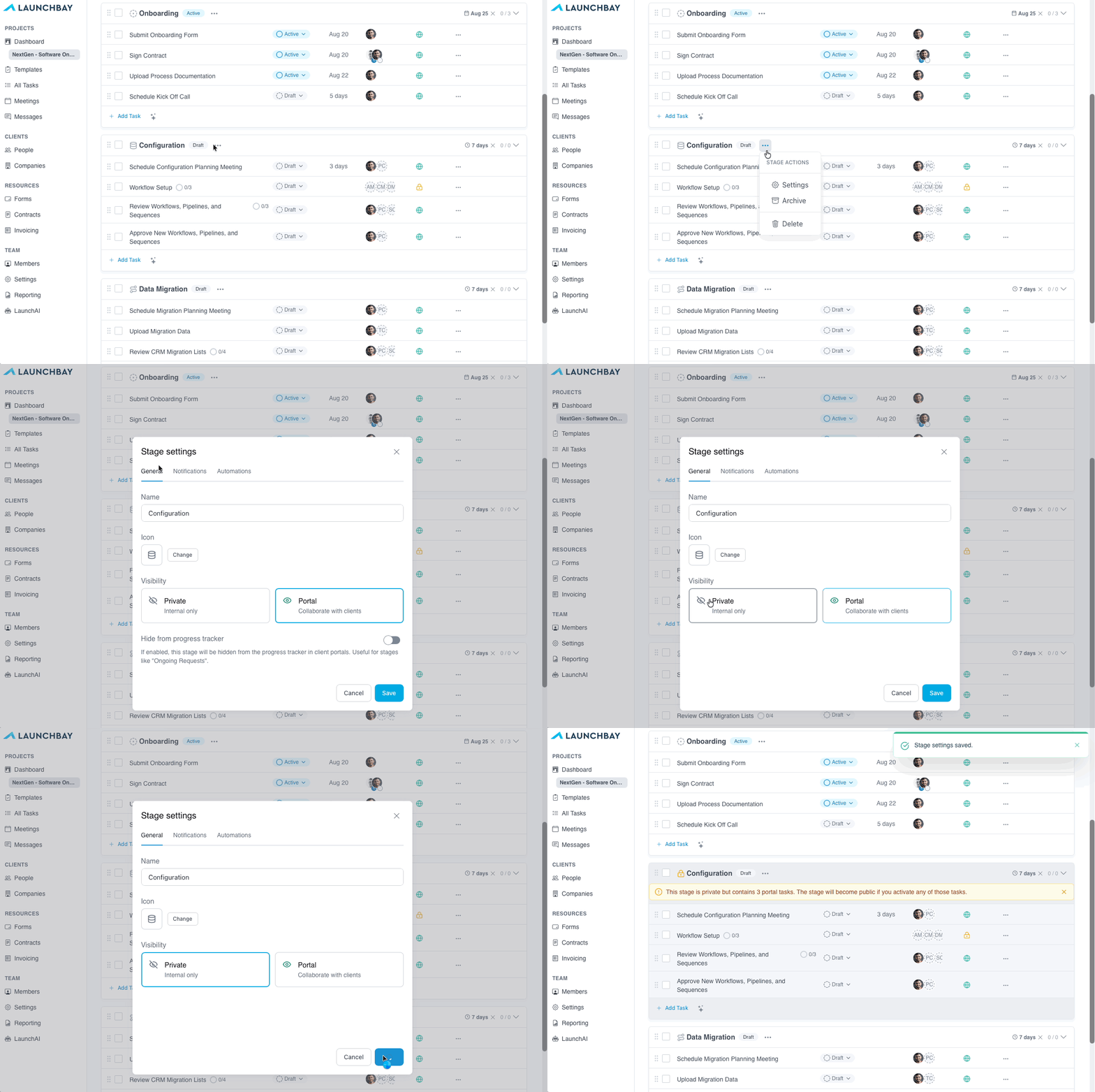
There are guardrails in place to prevent client-facing content from being inadvertently included in private stages. If the stage is still in Draft, you can add a public task to it—but you'll see a notice letting you know the stage will become public once activated. If the stage is already active, the public task option will be greyed out,and a tooltip will explain why.
👋 Tip: To show archived tasks & stages, click the "Filters" option in the project to show and find archived items.
Stage Due Date
You can set a due date for any stage to give clients a clear sense of when that phase of work is expected to wrap up, instead of individual tasks. Once set, the stage due date is visible to clients in their project tracker and is included in "Stage has started" email notifications sent to subscribed clients.
To set a due date, click the "Set Due Date" box in the top right of a stage, then choose a date.

Stage Completion Notifications
When a stage is completed, LaunchBay can automatically notify your team members via email. To enable this, click the three dots next to the stage name, click "Settings," and under the "Notification" tab check "Email" under notification settings, and click Save.

👋 Tip: Setting up stage notifications in a template means they'll carry over automatically to every new project created from it—no additional setup needed per project.
Client's View of Stages
Clients can view stages in the Project Progress Tracker and the Tasks page of their portal. On the Home page of their portal, they'll see a high-level progress tracker for every project they're assigned to. On the Tasks page of each project, there will be a progress tracker as well as all tasks organized into their assigned stages.

By default, the Project Progress Tracker will display all stages—Draft, Active, and Complete—giving clients a full view of progress from start to finish. Stages set to Private or Archived will not appear in the tracker or anywhere else in the client's portal.
📣 Note: Tasks in draft status will not count towards the task count below each stage.