
Adding Your Branding
On every plan, you can put your logo, colors, and header image on your client portals and on the notification emails LaunchBay sends to clients. This article covers each branding setting on the Portals tab of your team’s Settings.
📢 Note: Only team members with the Admin role can access Team Settings. See Managing Team Members.
Where to Find Branding Settings
Click Settings in the left sidebar and open the Portals tab. Portal Header and Branding are near the top.
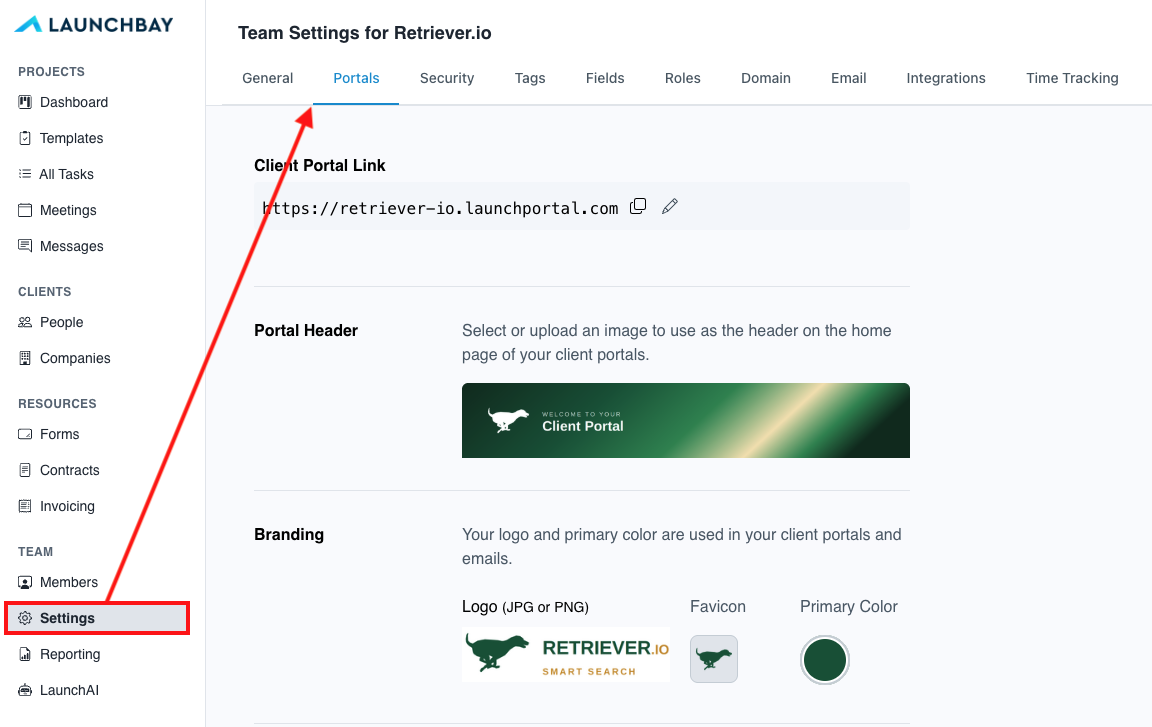
Portal Header
The portal header is the image across the top of the home page in every client portal. To change it, click Change Header Image in the Portal Header section.
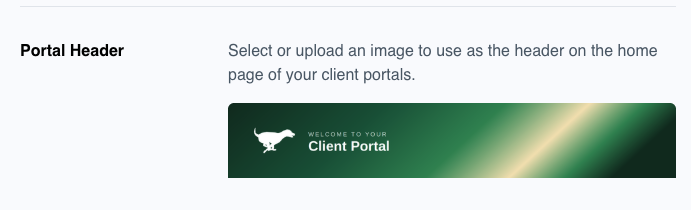
You can then:
- Upload an image. We recommend around 2400 x 400 px in JPG, PNG, or WebP format. The window includes a link to Canva templates if you need a starting point.
- Select from the library. Choose any of the pre-made headers to apply it in one click.
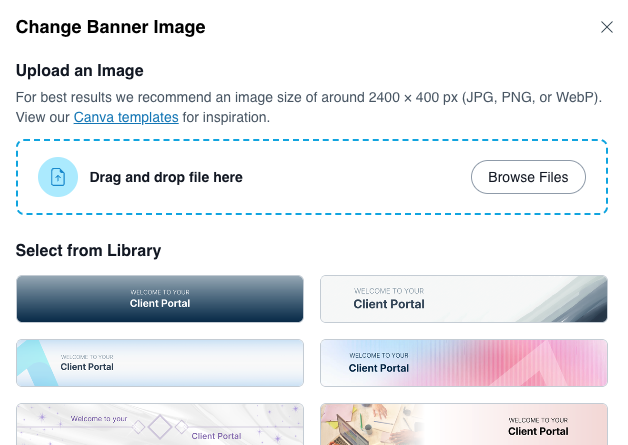
👋 Tip: The window that opens is titled Change Banner Image, but it controls your portal header. If you’re looking for a text announcement at the top of your portals, see Display a Banner Announcement Across All Client Portals.
Logo
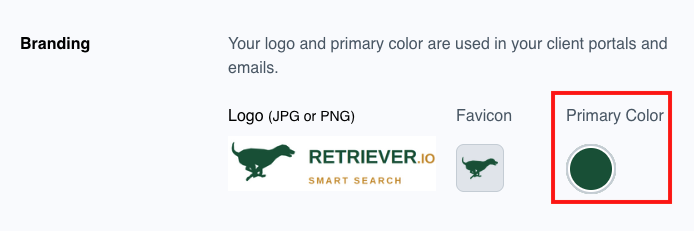
Your logo appears in your client portals and in the notification emails LaunchBay sends. In the Branding section, hover over the logo placeholder and click Change Logo. Upload a JPG or PNG, adjust the crop or orientation with the option on the left if you’d like, and click Save.
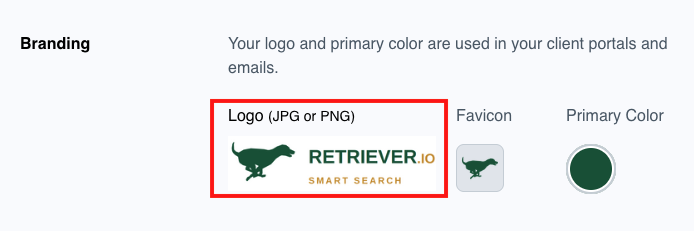
Favicon
The favicon is the small icon that appears in the browser tab when clients open their portal. Hover over the favicon placeholder and click Change Favicon, upload your image, and click Save.

Primary Color
Your primary color is used for buttons and highlights in your client portals and in your notification emails. Click the circle under Primary Color, then paste in a hex code or use the eyedropper to pick a color from your logo.
👋 Tip: To change your portal’s font and the rest of its colors, see Customizing Your Portal’s Font and Colors.
Looking for Another Setting?
| If you want to change | See |
|---|---|
| Your client portal link or custom domain | White-label Settings |
| Company name, date format, timezone, skip weekends, or reminder schedule | General Account Settings |
| Portal font, text color, background, or sidebar colors | Customizing Your Portal’s Font and Colors |
| A text announcement across all portals | Display a Banner Announcement Across All Client Portals |
| Portal passwords and MFA | Password Protected Portals and Two Factor Authentication |
Related: White-label Settings