LaunchBay Quickstart Guide
LaunchBay is the all-in-one client onboarding platform. It unifies forms, files, tasks, and communication in one place - eliminating manual follow-ups, spreadsheet chaos, and disjointed workflows so teams can scale efficiently and deliver a premium client experience.
This article will help you start seeing value out of LaunchBay right away.
Terminology: Helpful Terms to Know
- Project - A structured workspace that contains all tasks, stages, files, forms, and communications related to a specific project
- Task - An actionable step in a project
- Stage - A grouping of related tasks that represents a phase or section of a workflow
- Template - A pre-configured project structure, including stages, tasks, forms, and more
Step-by-Step: Launch Your First Project
Step 1: Start a New Project
- Click the "+ New Project" button

Step 2: Fill Out Project Details
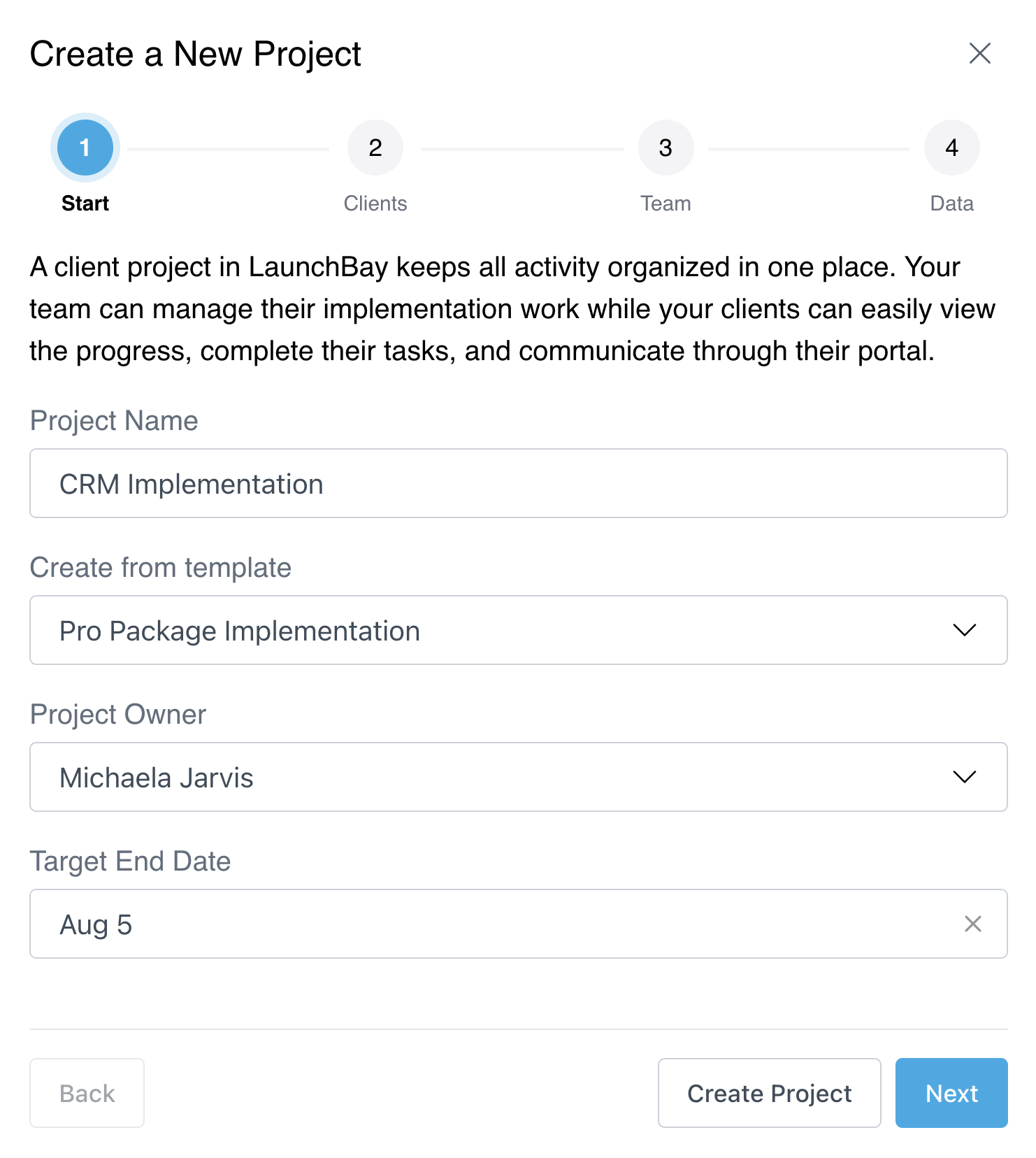
- Give a name to your project - something that will make sense to your team and the client.
- If you have a template built, choose which template you'd like to use.
- If you do not have a template created, skip this step and follow the alternative step later.
- Select a Project Owner from your team.
- You have the option to choose to select a target end date.
-
This can be updated later in the project's settings.
-
Step 3: Add Your Clients
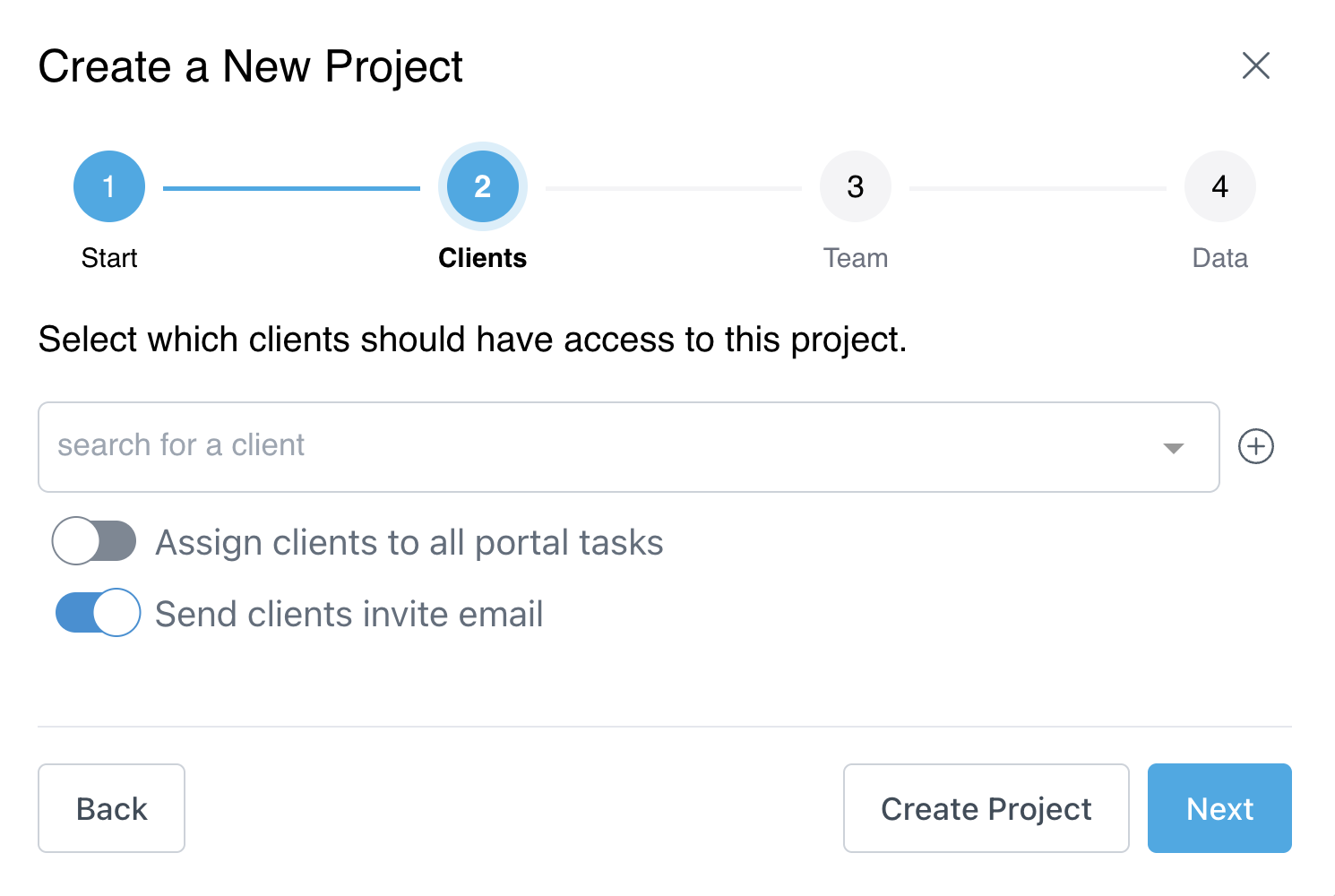
- If your client is already in the people directory, you will find their name in the drop-down. If they are new to the system, you can click the + icon to add their details.
- You may add multiple client users at this time.
- You can choose to toggle on "Assign clients to all portal tasks". This will automatically assign all clients to all portal (external facing) tasks in the workflow.
- You can choose to toggle off "Send clients invite email" if you are not ready for your client to be alerted of their portal yet.
Step 4: Add Your Team (optional)
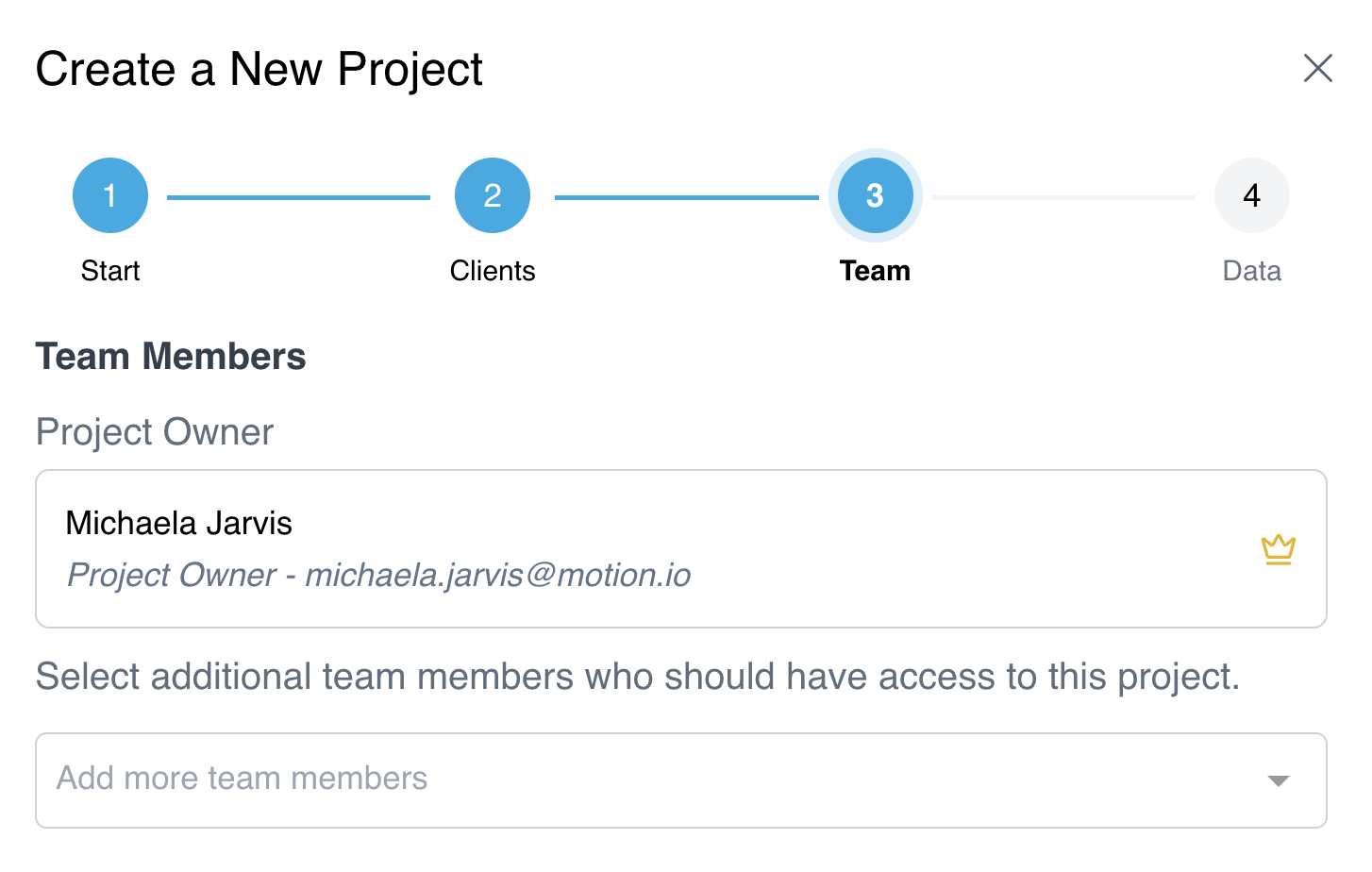
- You may add more members of your team to the project.
- Note: if they are already a user on the template, they will automatically be added.
- If you have a higher-level subscription, you will also have the ability to add AI Agents to the project during this step.
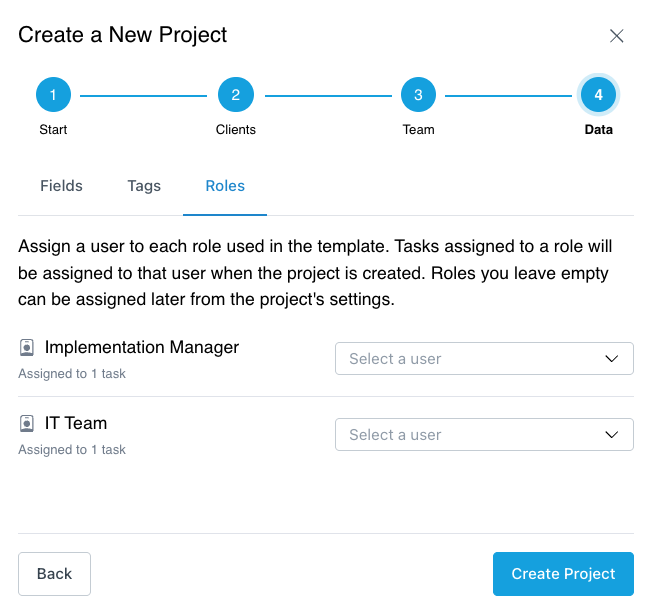
Step 5: Add Custom Data (optional)
- If you have project role placeholders or custom fields or set up in your account's settings, you are able to add in details during this step.
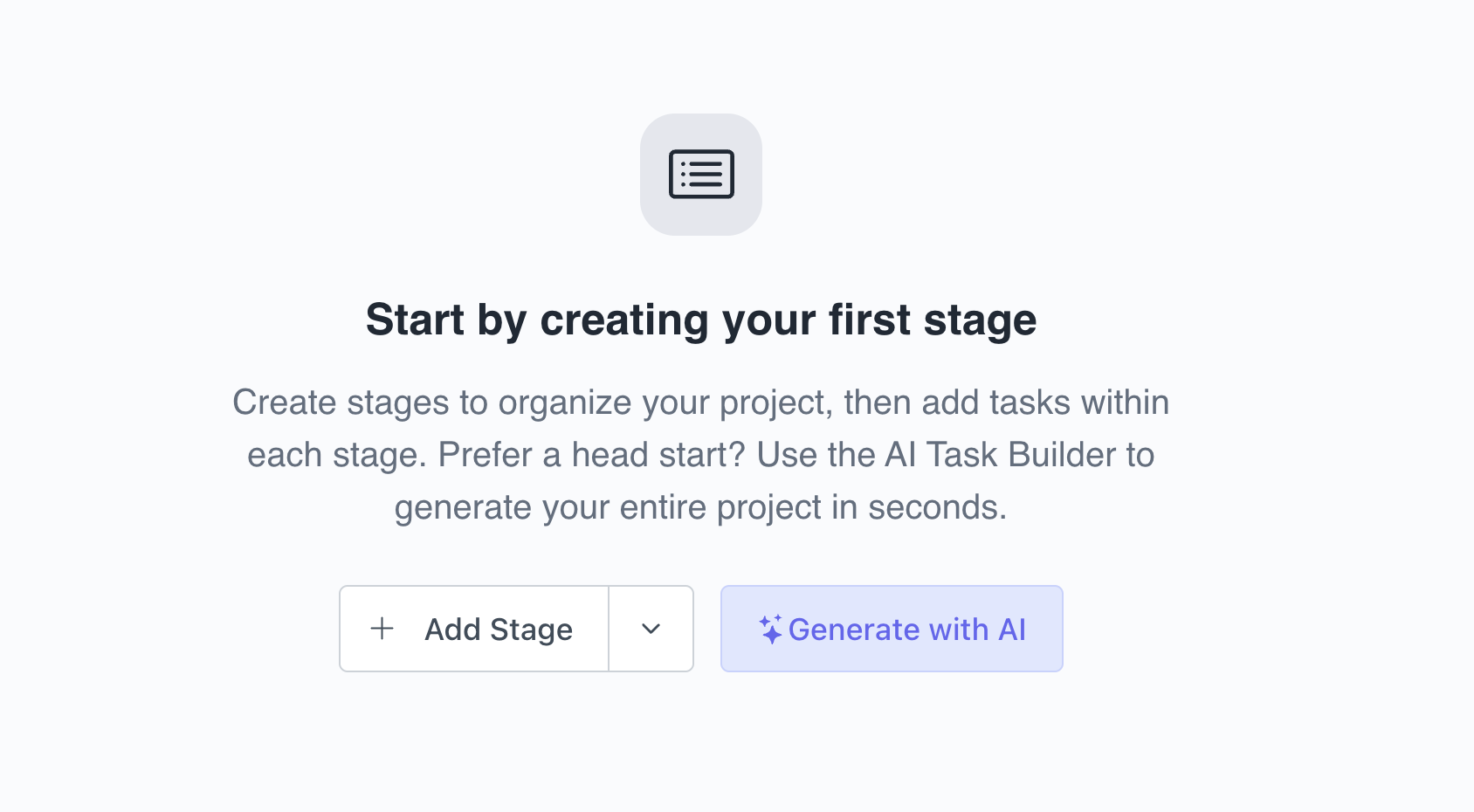
Alternative Step: If no Template was used... Create Stages & Tasks
- Click "+ Add Stage" and give it a name or use our AI Builder and input your current workflow.
- Within the new stage, start creating tasks for your clients and team or edit the tasks AI built.
Step 6: Assign Tasks
- Click on one or more task checkboxes by a task that you'd like to assign.
- Use the "Actions" drop-down menu (above the top stage) and click "Set Assignees".
- An assigned task will have a circle with either a photo or initials.
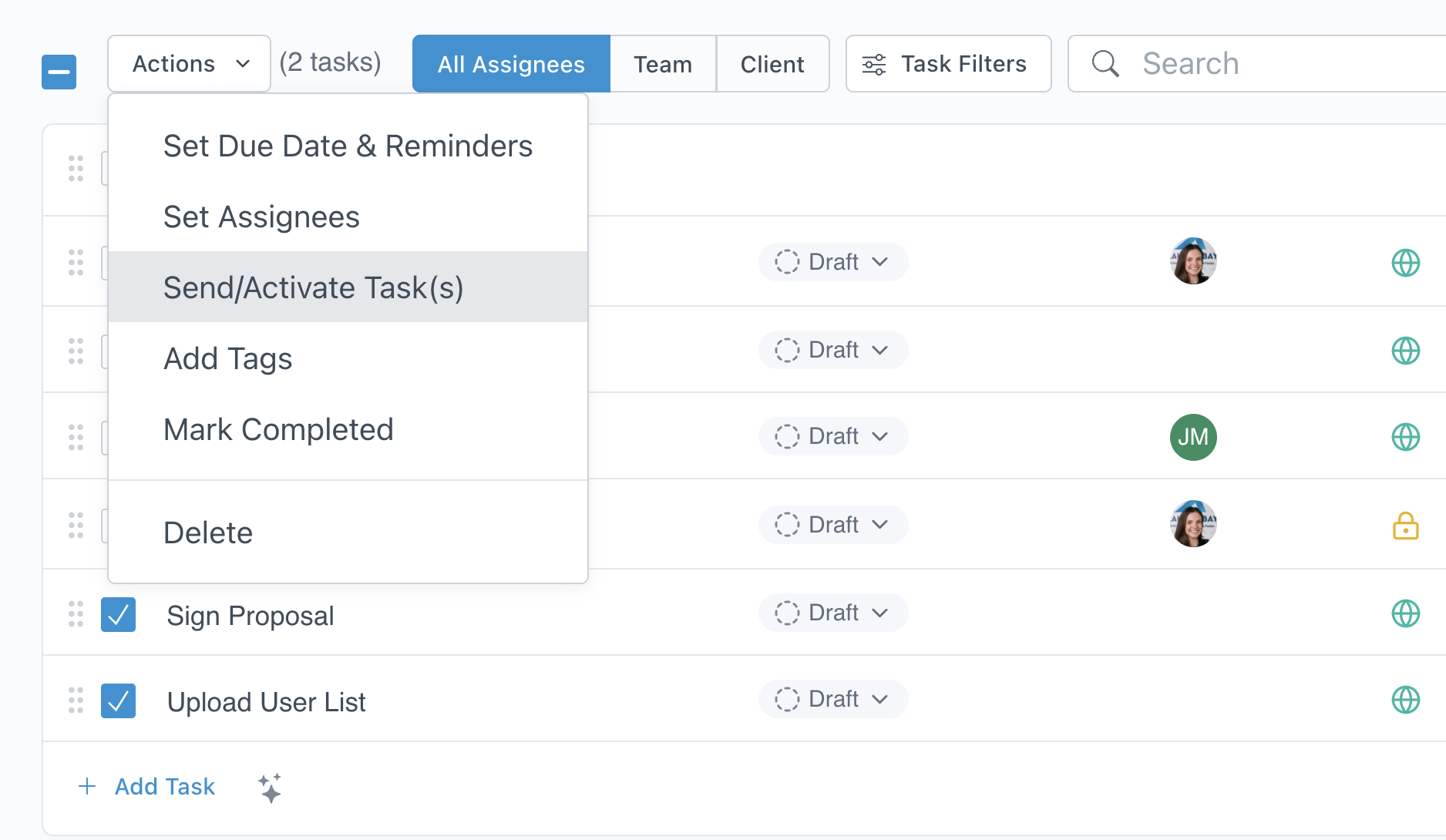
Step 7: Activate Tasks
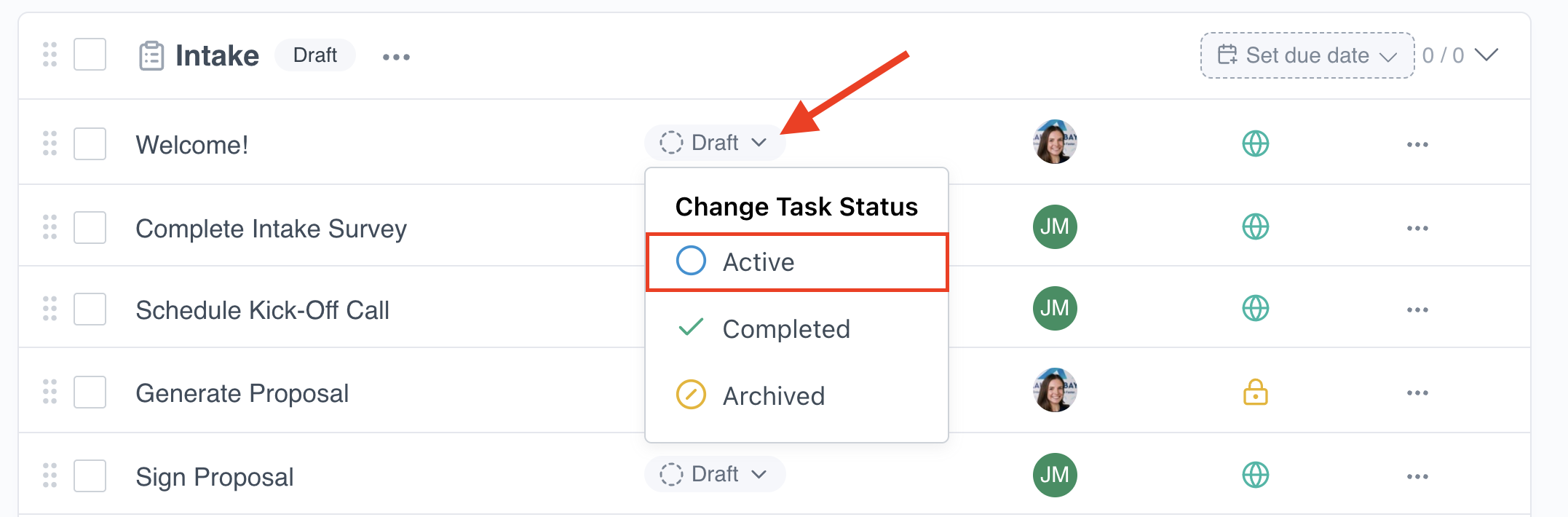
- Moving a task from "Draft" to "Active" makes it visible and sends an email notification to the assignee.
- A task's status can be changed by clicking on it's current status.
- In the future, you can skip this step by setting up automations.