
Project Role Placeholders
Project Role Placeholders let you assign tasks in templates to roles rather than specific people. When you create a project from a template, you assign real team members or clients to each role — and LaunchBay automatically assigns them to every task that uses that placeholder.
This is especially useful for teams where the people responsible for certain tasks change from project to project.
How Role Placeholders Work
Instead of assigning a task directly to "Sarah" or "John," you can assign it to a role like "Account Manager" or "Implementation Lead." When a new project is created from the template, you map each role to a real person — and all tasks with that placeholder are automatically assigned to them.
Example use case: You have an intake form task that requires a client to complete it first, then a team member to review and approve the submission. The client changes every project, but the reviewer also changes depending on who owns the account. By using a placeholder for the reviewer role, you can set the assignee order in the template and assign the right team member when creating each project — no manual task reassignment needed.
Setting Up Role Placeholders
Step 1: Create Roles in Account Settings
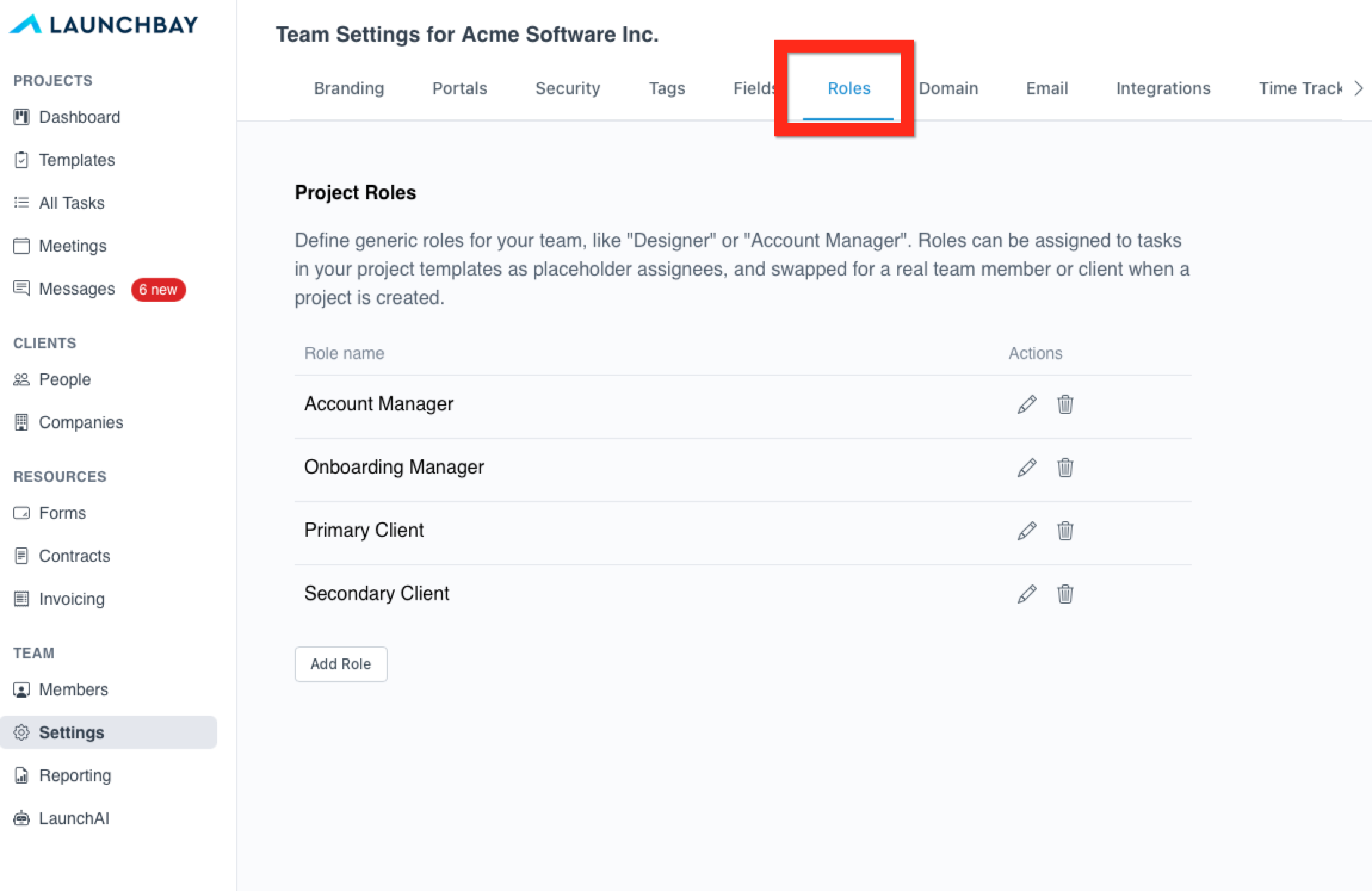
Go to Settings → Roles and create the placeholder roles you want to use across your templates (e.g. "Account Manager," "Implementation Lead," "Client Approver").
Step 2: Assign Placeholders to Tasks in a Template
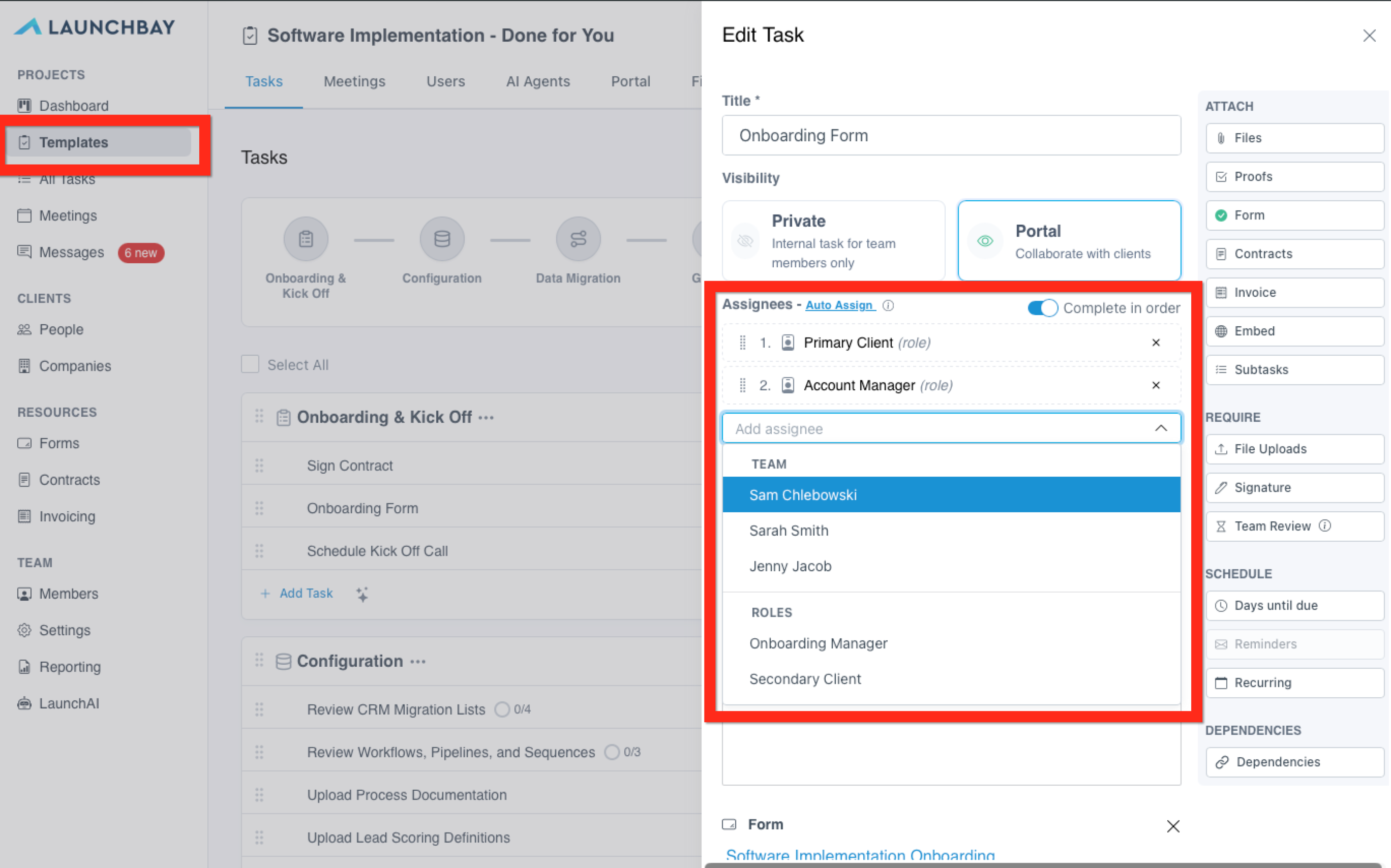
Open a template and assign your placeholder roles to tasks just as you would a real team member. Placeholders are available in the assignee dropdown alongside your actual team members.
Step 3: Assign Real People When Creating a Project
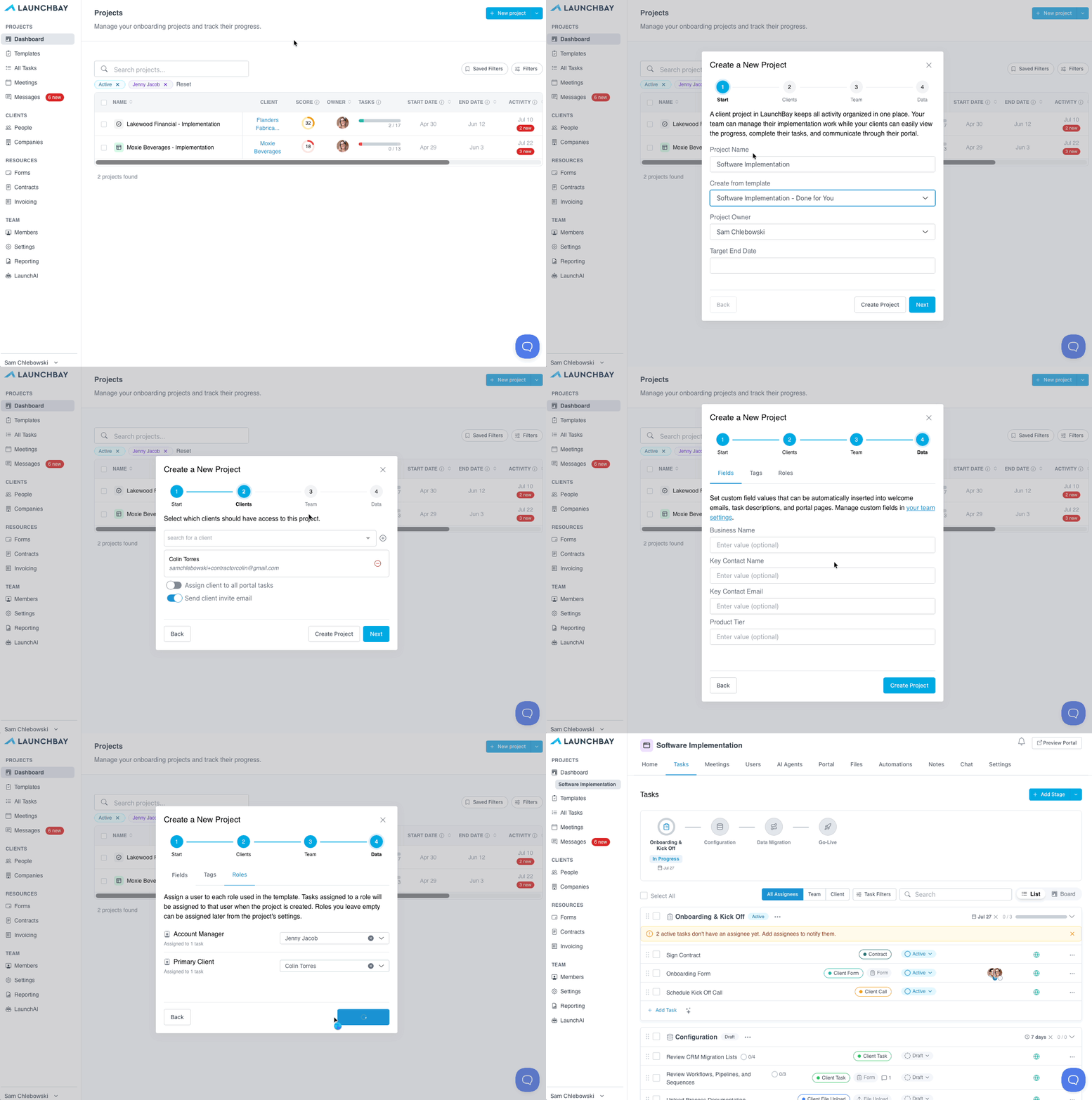
When creating a new project from a template, Step 4 of the project creation modal will prompt you to assign real people to each role. Any task in the template that used that placeholder will automatically be assigned to the person you select.
📢 Note: The role assignment tab only appears in the project creation modal if the selected template has placeholder roles assigned to tasks.
Managing Role Assignments in an Active Project
If you didn't assign a role during project creation, you can do so at any time from the project Settings → Roles tab. Only unassigned roles will appear here — once a role has been assigned, it cannot be changed to auto-update existing task assignments.
👋 Tip: Role placeholders work especially well with Assignee Order — set the order in the template using placeholders, and the right people are automatically slotted in when the project is created.