
Due Dates and Reminders in Project Templates
In addition to adding due dates and reminders for portal tasks in your active LaunchBay projects, you can assign due dates and reminders to portal tasks in your project templates.
The instructions below detail the process for adding due dates and reminders to portal tasks in your LaunchBay project templates.
How to Add Due Dates and Reminders to Tasks in Project Templates
After entering due dates and adding reminders for tasks in a project template, those tasks will automatically populate with the configurations you set each time you create a new project from the template.
📣 Note: After creating a new project from a template where you added due dates and reminders to tasks, those tasks will be set as drafts and need to be assigned and sent to a client. If you would like to automate the process of creating projects from templates, inviting clients, and assigning them tasks, LaunchBay's Zapier integration allows you to do so
Step 1: Select a task in a LaunchBay project template
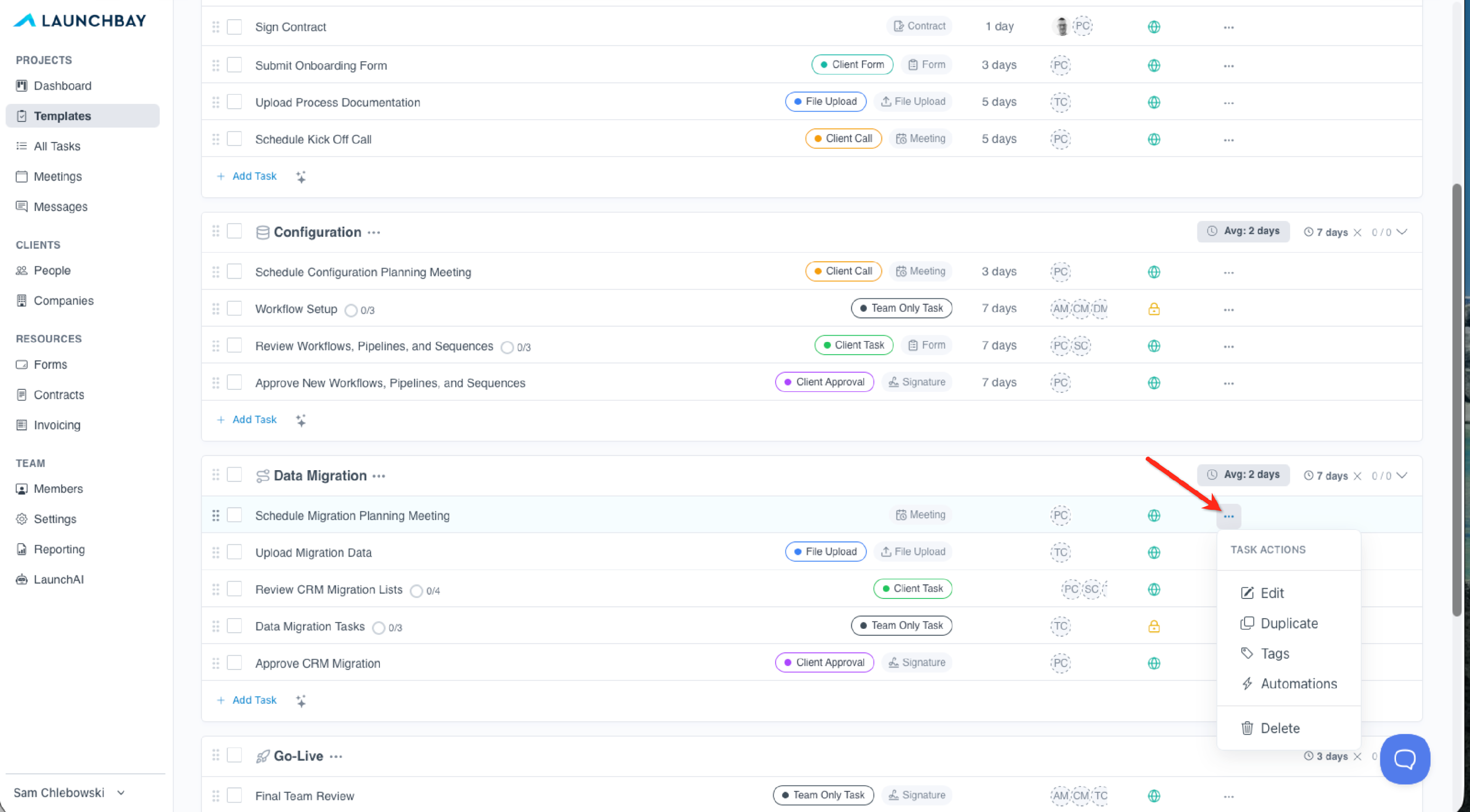
To access tasks in a project template, select the "Templates" option on the left side of your account and click the template you want to edit.

On the template's "Tasks" page, click the 3-dots beside the task where you want to add due dates and reminders, then "Edit".
Step 2: Add a due date to the task
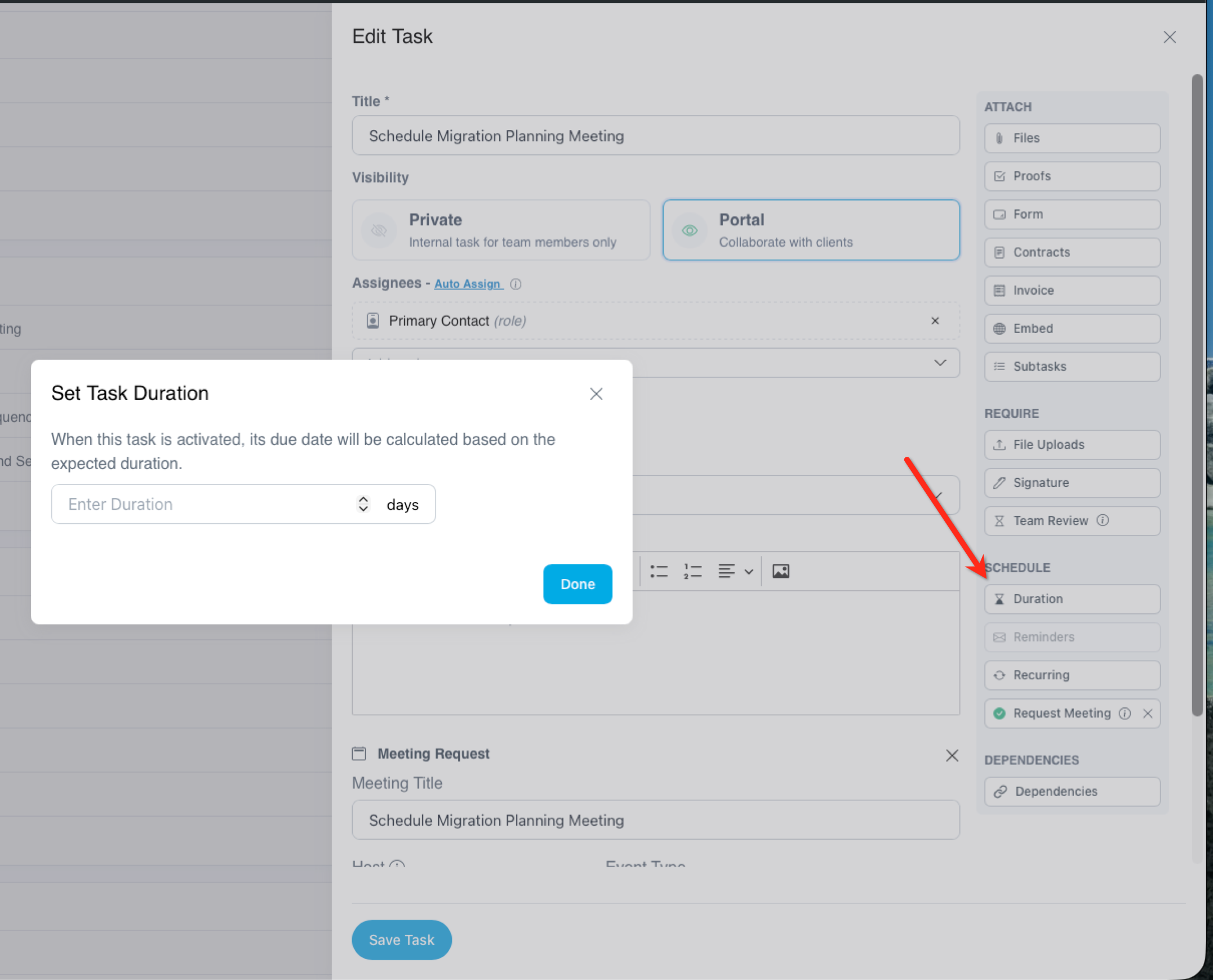
Next, click "Duration" under the Schedule Task options. Add a due date for the task by entering a number into the field that appears in the modal. When this task is activated, its due date will be calculated based on the entered duration.
Step 3: Add automated reminders to the task
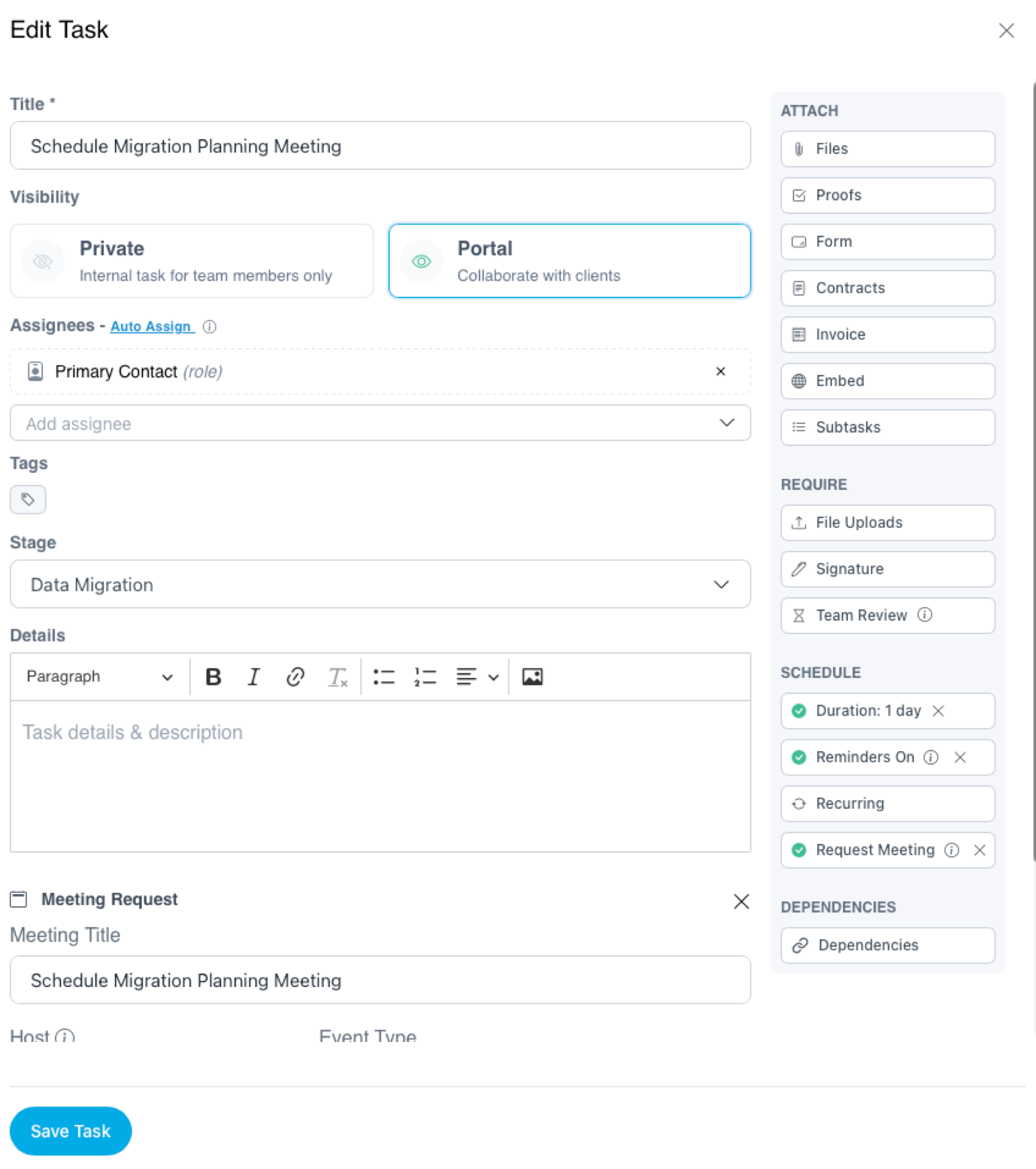
After entering a number into the field referenced in Step 2, automated reminders for the task will automatically turn on.
👋 Tip: To learn more about how automated task reminders work in LaunchBay, click here.
Stage Due Dates and Notifications in Templates
In addition to setting due dates and reminders on individual tasks, you can also configure due dates and notification preferences for stages directly within a project template. These settings will carry over automatically to any new project created from the template.
Stage Due Dates
Setting a due date on a stage gives clients a clear sense of when that phase of work is expected to wrap up instead of using individual task due dates. The due date is visible to clients in their portal tracker and is included in "Stage has started" email notifications sent to subscribed clients.
To set a due date, click the "Set Due Date" box in the top right of a stage, then choose a specific date or X number of days after stage activation:

Stage Notifications
You can also enable notifications for individual stages so your team is automatically alerted when a stage is completed. To configure this, click the three dots next to the stage name and check the notification options you'd like to enable:
- Email — notifies team members when the stage is completed
- Slack — posts an update to your connected Slack channel when the stage is completed (requires Slack integration to be set up in your account settings)