
Conditional Logic in Forms
Conditional logic in LaunchBay lets you show or hide certain fields based on how someone answers previous questions—keeping your forms short and to the point.
This article will show you how to set up conditional logic step-by-step, so you can collect exactly what you need without overwhelming your clients with extra questions.
How to Use Conditional Logic in Forms
Setting up conditional logic in LaunchBay is quick and easy. Here’s how to do it:
- Navigate to the Forms page from your account sidebar, and click on the form you want to modify.
- Select the field you want to display conditionally and click the settings wheel icon.
- In the settings panel, click Set conditions.
- Enable conditions by toggling the switch, then set your specific rules. For example, you can base conditions on responses to multi-select questions—if a client selects a particular option, it can trigger other fields to appear.
- Once your conditions are set, click Update to confirm your changes, and then click Save Form to ensure everything is applied.
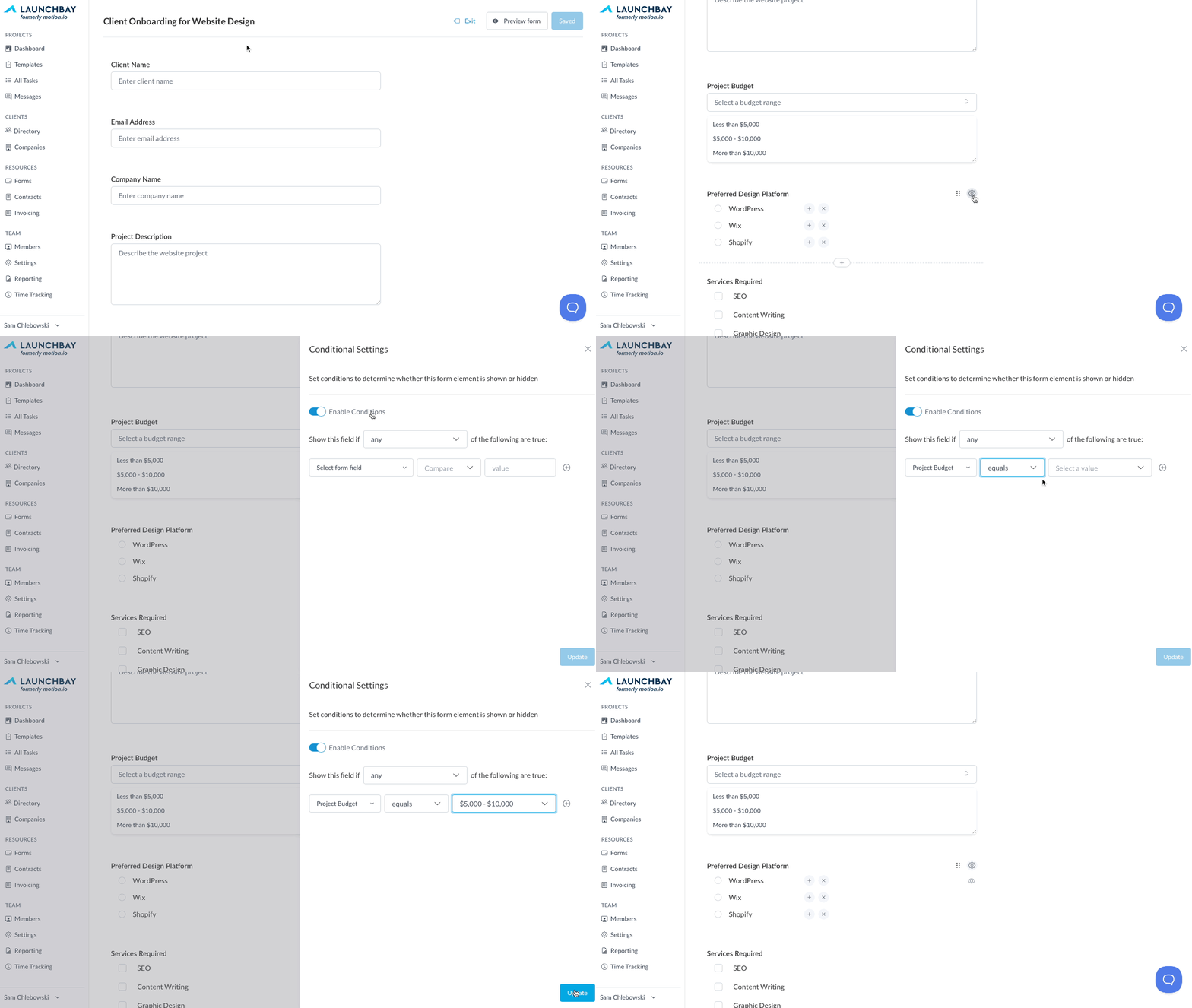
With this setup, you can show only the most relevant questions to users, making your forms shorter and more engaging.
👋Tip: Before you make your form live, it’s a good idea to preview it to see how the conditional fields appear. You can do this by using the Preview form button in the form builder. This helps ensure all conditions are working correctly.
Below, you can see how clients experience the form when using conditional logic:
Before selecting an option: The additional field is hidden until the user enters an answer for their "Total Monthly Budget".

Once the user submits an answer to the selected trigger field, the new field appears instantly based on your set conditions.

👋 Tip: Want to know how to attach your forms to specific portal tasks? Check out our guide on Attaching a Form to a Task for more details.
Building Conditional Logic with AI
Don’t want to set up rules by hand? Let AI do it! Describe the form you need, including any follow-up questions that should only show up sometimes, and LaunchBay builds the conditional logic for you in seconds. No settings to click through and no rules to wire up.
Use the AI form builder
Open the Forms page, describe the form you want in plain language, and click Generate Form. When your description includes a follow-up, LaunchBay adds a show/hide rule so that question stays hidden until it applies. For example:
A client feedback form. Ask for their company name, then ask if they’re happy to provide a testimonial. If they say yes, ask them to write it.
The testimonial question only appears after the client answers “Yes.” Learn more in Creating Forms.
Use the LaunchBay MCP connector
Prefer to work from your AI assistant? Ask it to build the form the same way, describing the follow-up question in your request. Your assistant confirms the fields with you before it builds, and the finished form shows up in your Forms library like any other. To get connected, see the MCP connector overview, or browse the full tool list to see what else your assistant can do with forms.