
Task Timeline View
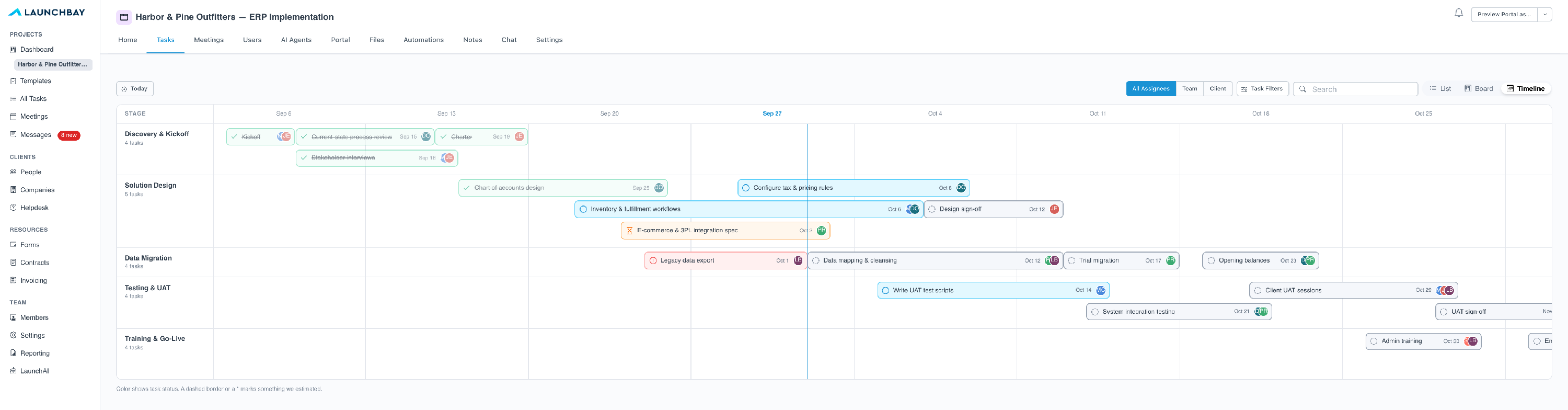
Task Timeline shows every task in your project on one calendar, so you can see the whole plan at a glance and reschedule by dragging. Each task is a bar that shows when it starts, how long it runs, and when it’s due, grouped by stage like a Gantt chart. It sits next to List and Board in your project’s Tasks tab, and there’s nothing to set up.
How to Open Task Timeline
- Open any project and go to Tasks.
- Switch the view from List or Board to Timeline.
Your stages, tasks, assignees, and statuses are already there, so there’s nothing to import or configure.
What You’ll See
- Stages: Tasks are grouped by stage, so you can see how each phase of your project fits into the schedule.
- Task bars: Each bar runs from the task’s start date to its due date and shows who it’s assigned to.
- Today line: A blue line marks today across the whole project.
- Status colors: Bars are colored by status, so you can see what’s done, in progress, or late.
- Automation icon: Tasks driven by an automation carry a small lightning bolt, so nobody is surprised when work starts on its own.
Tasks Without Dates
Not every task has dates yet. Timeline estimates the missing ones from your stage history and task details, and marks them with a dashed border so you can tell what’s committed and what’s estimated.
How to Reschedule Tasks
You change your plan by dragging, and every change saves the moment you let go.
- Move a task: Slide a bar to a new week. Its start and due dates shift together, and its length stays the same.
- Change the due date: Drag the right end of a bar to make the task longer or shorter.
- Change the start date: Drag the left end of a bar to start work earlier or later while the due date stays put.
- Open a task: Click any bar to open the full task, with its comments, files, and forms.
Dependent Tasks Move With It
When you push a task later, the tasks that depend on it move too. If a client sends their data a week late, drag that task one week to the right, and everything waiting on it shifts with it. See Task Dependencies to learn how to set dependencies up.
Ways to Use Task Timeline
- Plan in minutes: Build a schedule by dragging bars into place instead of typing dates into each task. It works well for laying out a rollout live with a client on a call.
- Spot overloaded teammates: Every bar shows who it’s assigned to, so overlapping work on the same person is easy to see while you can still rebalance it.
- Absorb delays: When a date slips, drag the task and let its dependent tasks follow, so the plan stays accurate without rebuilding it by hand.