
Importing Tasks and Stages
LaunchBay's Import functionality allows you to bring tasks and project stages from an existing template into an active project or another template—without starting from scratch.
This article will explain how importing works and how you can use it to selectively add tasks and stages to your projects and templates.
👋 Tip: In addition to the Import functionality, which allows you to bring in tasks and stages from a template to a single active project or template, you can use LaunchBay's Global Template Updates feature to apply changes made to a template to all active projects previously created from it.
How Importing Works
Because there are various ways you can use the Import feature in LaunchBay, the best way to understand how this functionality works is through a real-world example:
Let's say you operate a marketing agency, and a client signs up to have you rebuild their website. To onboard the client, you create a new project using your "Website Redesign" template. Down the road, the client also signs up for an SEO package you offer. Using the Import functionality, you could bring in tasks and stages from a separate "SEO" template and add them directly to the client's existing project.
How to Import Stages
Importing a stage is the right move when you want to add a fully built-out stage—complete with its tasks and automations—from an existing template.
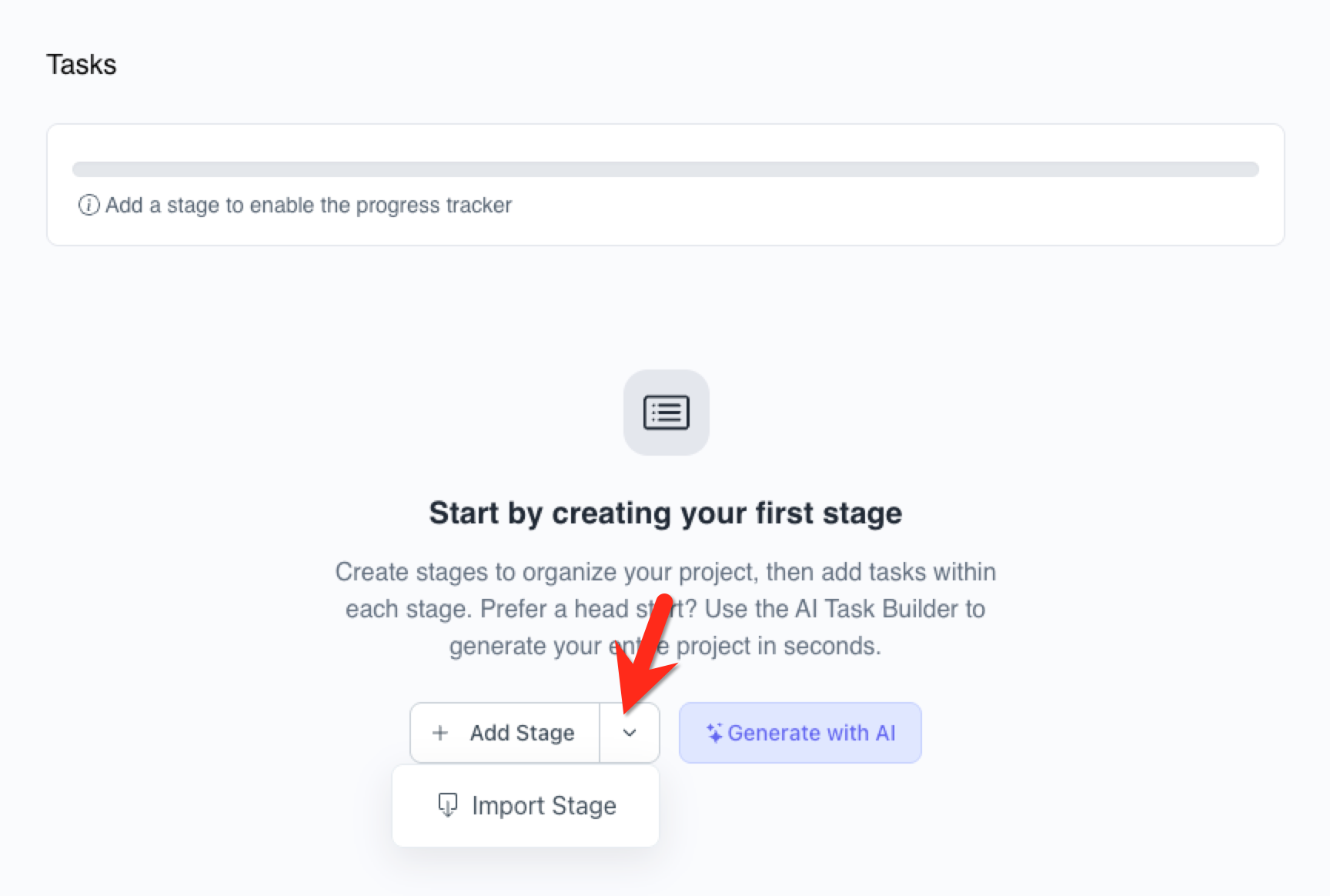
To import a stage into a blank project or template, click the "Add Stage" button in the center of the page and select "Import Stage" from the dropdown.
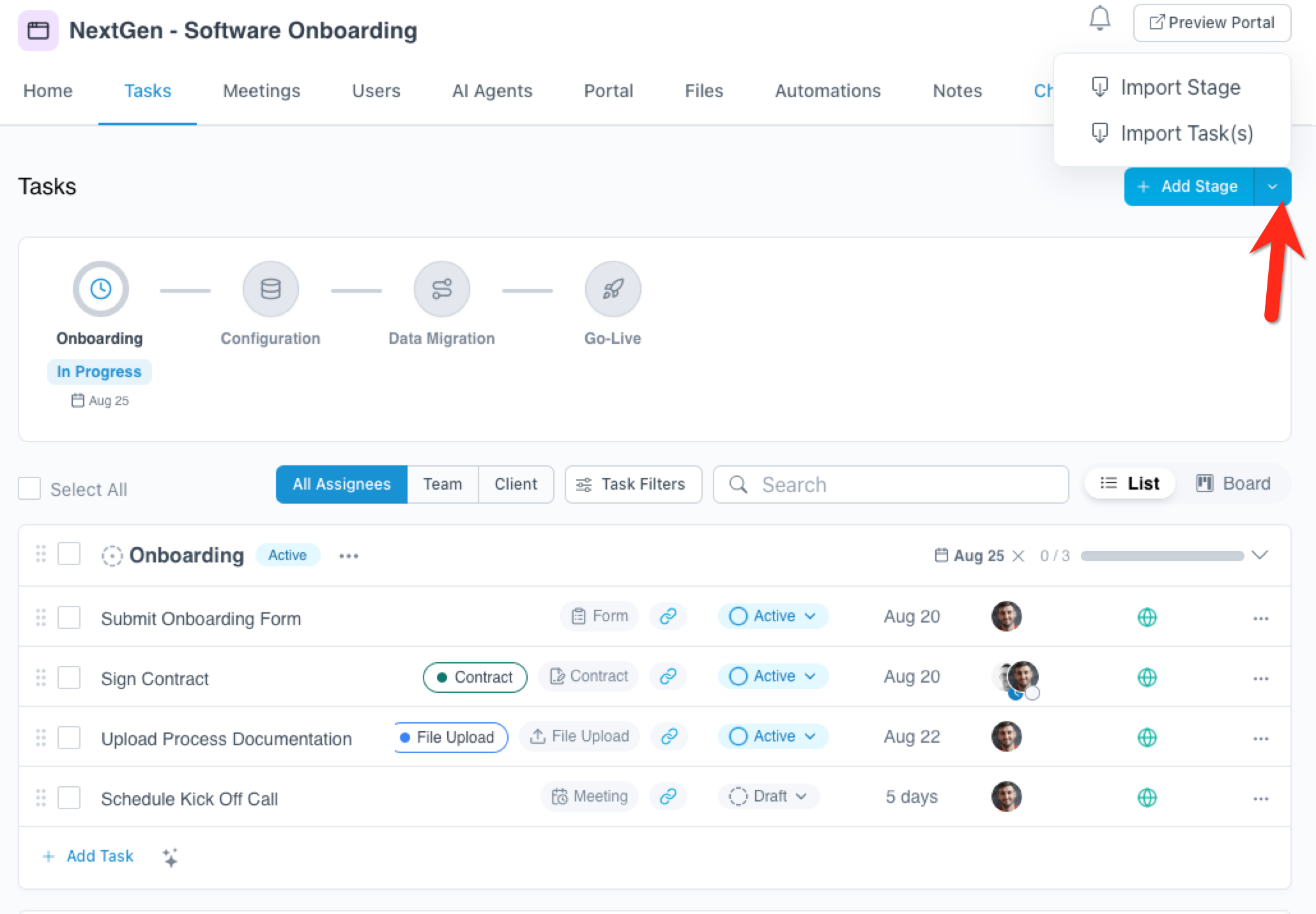
If stages already exist, the "Add Stage" button moves to the top right of the page. Click the dropdown arrow next to it and select "Import Stage."
In the modal that appears, select a template, then the stage you'd like to import. Click the blue "Import" button, and the stage will instantly be added to your project or template.
A stage will import in its original format and order, and with its existing automations
How to Import Tasks
If you want to add individual tasks to an existing stage rather than bringing in a full stage, use Import Task instead. Here's how this looks in practice:
Let's say you initially onboarded a client for a website design. Now they've added your SEO services. Rather than building a new stage from scratch, you can import specific tasks from your SEO template directly into an existing stage in the client's project.
To import tasks, navigate to the Tasks page of your project or template. Click the dropdown arrow on the blue "Add Stage" button in the top right corner and select "Import Task."
📣 Note: A stage must exist in a project or template before you can import tasks into it. If you're starting with a blank project or template, import or add a stage first.
In the modal that appears, select a template, then the individual tasks you'd like to import. Click the blue "Import" button and the tasks will instantly be added to the project or template.
When importing tasks, your selection will come over along with the stage they belong to—but automations will not be imported. If you'd like to move an imported task into a different stage, use the drag handles to drag and drop it as needed.
👋 Tip: If you set up an automation to import a task, you can set the task to be active upon import! Learn more about automations here.