
Attach Files Task Option
When creating tasks, the Attach files task option enables you to attach all types of files and quickly send them to clients or team members for them to review and keep for their own records.
This article will provide instructions for using the Attach files task option.
📢 Note: Looking to send files to clients for feedback and approval? This functionality is now a part of the new "Proofing" task option.
How to Attach Files to Tasks
After creating a new task (or editing an existing task) you want to attach files to, click "Files" under the "Attach" section of the task composer.

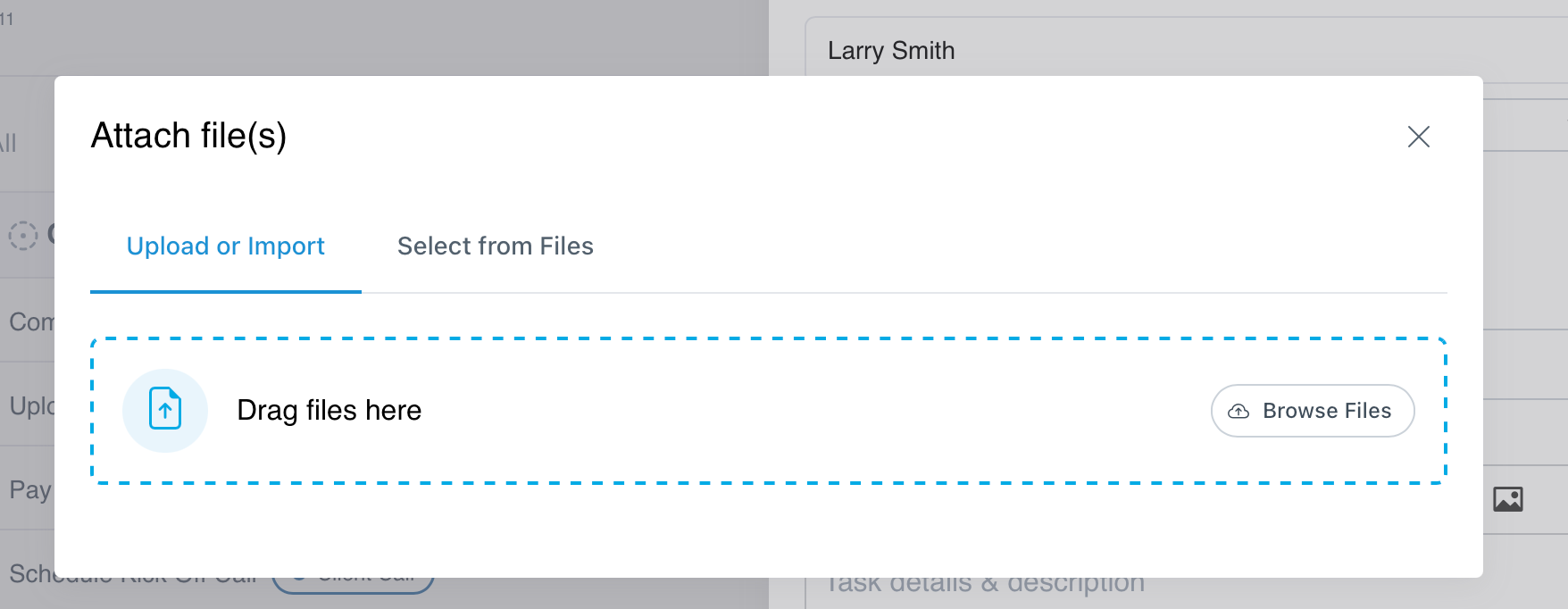
In the modal that opens, you have two options:
- Upload a new file directly from your device.
- Select an existing file from your project file library by clicking "Select from Files" and selecting the file you'd like to attach.
How to Files are Stored
If your team needs access to files from previously completed tasks, all files your team has attached to tasks are stored within the Files page of each project. To learn more about creating folders and managing files, click here.
