Send Chat Messages to Slack with Zapier
When enabled in your client portals, LaunchBay's built-in chat integration provides clients an easy way to send messages, upload files, and communicate with your team throughout your work together.
This article will detail how you can utilize Zapier to automatically send chat messages from LaunchBay to other apps you're using and ensure your team never misses a new message.
👋 Tip: If you'd prefer not to include LaunchBay's chat integration in a portal, you can quickly remove it by editing the pages of that portal. Click here to learn more.
Setup Instructions
The example in the screenshots below is for a Zap that automatically sends new chat messages from LaunchBay client portals to Slack.
However, you can follow a similar process for a variety of apps you might use, including:
- Other messaging applications like Microsoft Teams
- Project management tools like Monday.com, Asana, and ClickUp
- Customer relationship management (CRM) software like Pipedrive and Hubspot
📢 Note: To follow the steps in this guide, you’ll need to sign up for a Zapier account and connect it to LaunchBay. If you need instructions on how to do this, click here.
Step 1: Select the "Client Chat Message" trigger
When creating a Zap, you must always add a "Trigger" as the first step. To specify your trigger event, click the "Trigger" box and search "LaunchBay" in the open modal.
From there, select "Client Chat Message" from the event dropdown.
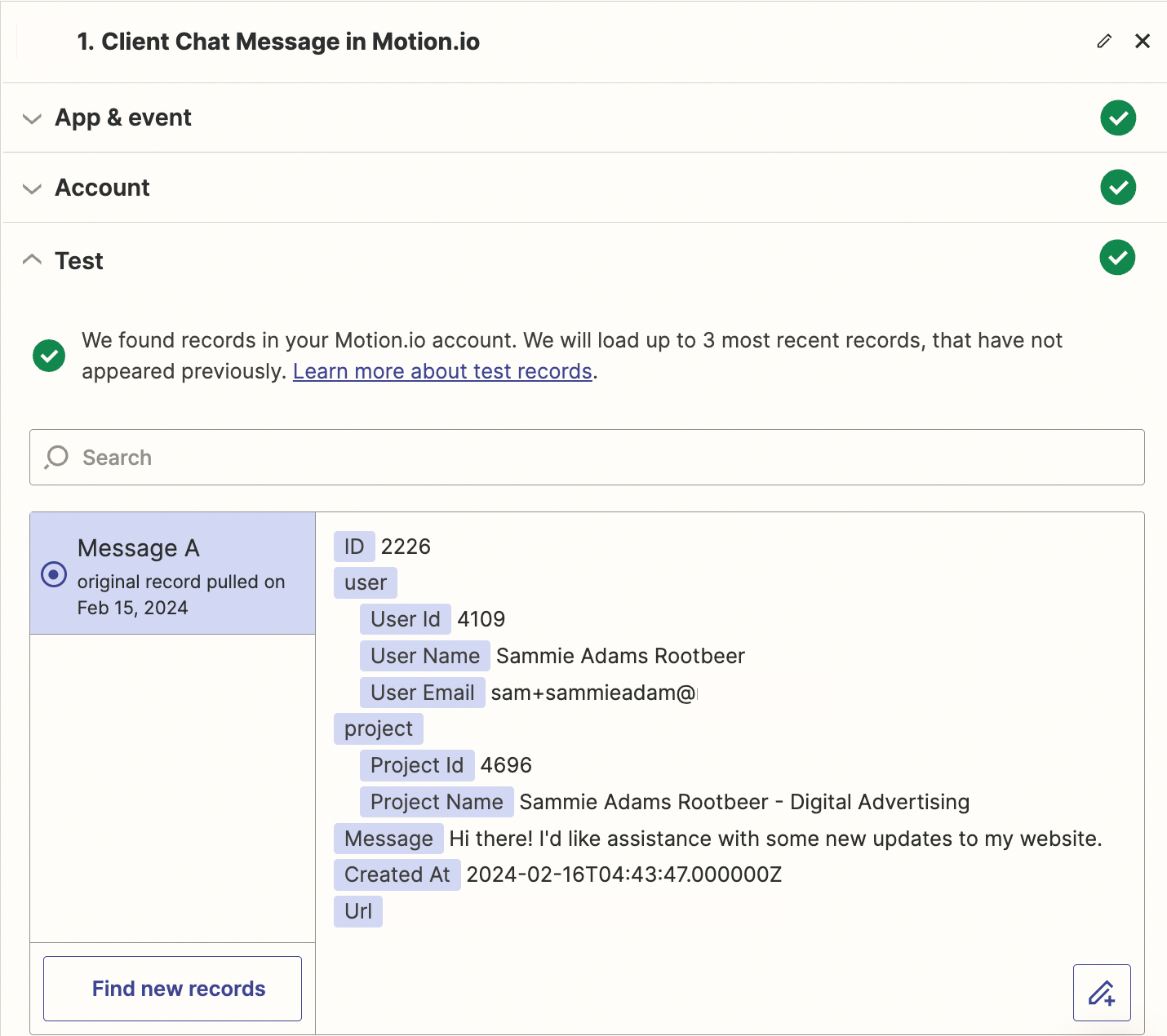
👋 Tip: When creating a new Zap, testing each trigger and action as you go is essential. Doing so allows you to verify each step works and map information from previous steps to future ones.
Step 2: Create a new action
As previously mentioned in this article, using Zapier, it's possible to send chat messages from your LaunchBay to a wide variety of other software apps.
Because the Zap in this example will automatically send chat messages to Slack, the next step is to add "Slack" as an action and then select the "Send Channel Message" event.

Step 3: Map fields from the trigger to your new action
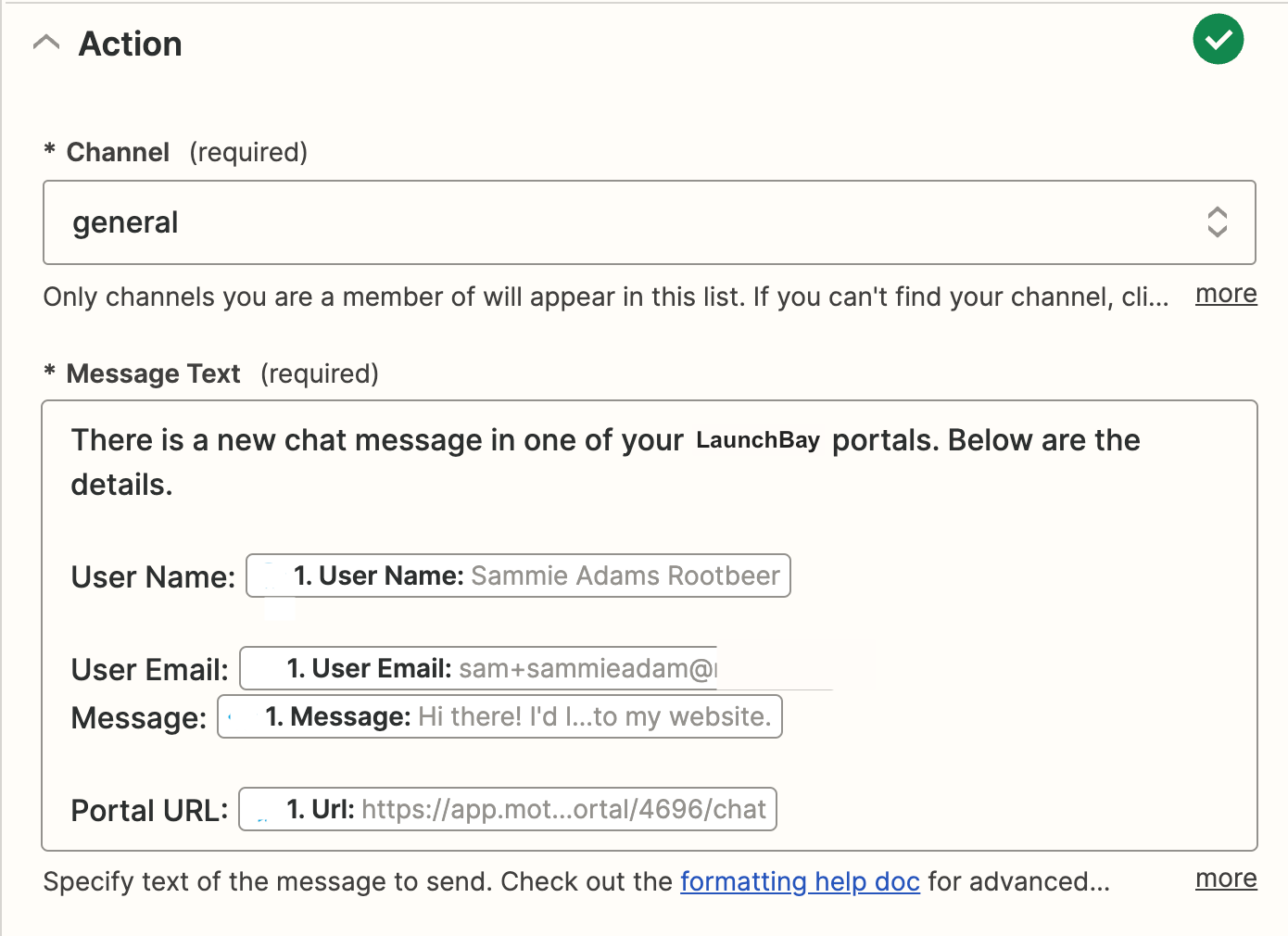
After creating your new action, you can customize the formatting and information to include when your Zap sends a chat message from LaunchBay to another application.
When sending chat messages to Slack with Zapier, the next step is to map the information from the trigger to the message Zapier will send to the specified Slack channel. The example configuration below sends a notification with the client's name, email, chat message, and LaunchBay portal URL.