
Client Requests
Client Requests allow your clients to submit tasks directly from their portal, giving them a simple way to flag work, ask questions, or share information at the right stage of a project. Each request creates a task in the project that your team can action — visible to both your team and the client.
This article explains how to set up Client Requests and how clients interact with them.
How Client Requests Work
Client Requests are enabled on a per-stage basis. When turned on for a stage, clients will see a "Submit a Request" button at the bottom of that stage in their portal. They can submit a request at any time while that stage is active, and LaunchBay will automatically create a task in the project for your team to action.
Setting Up Client Requests
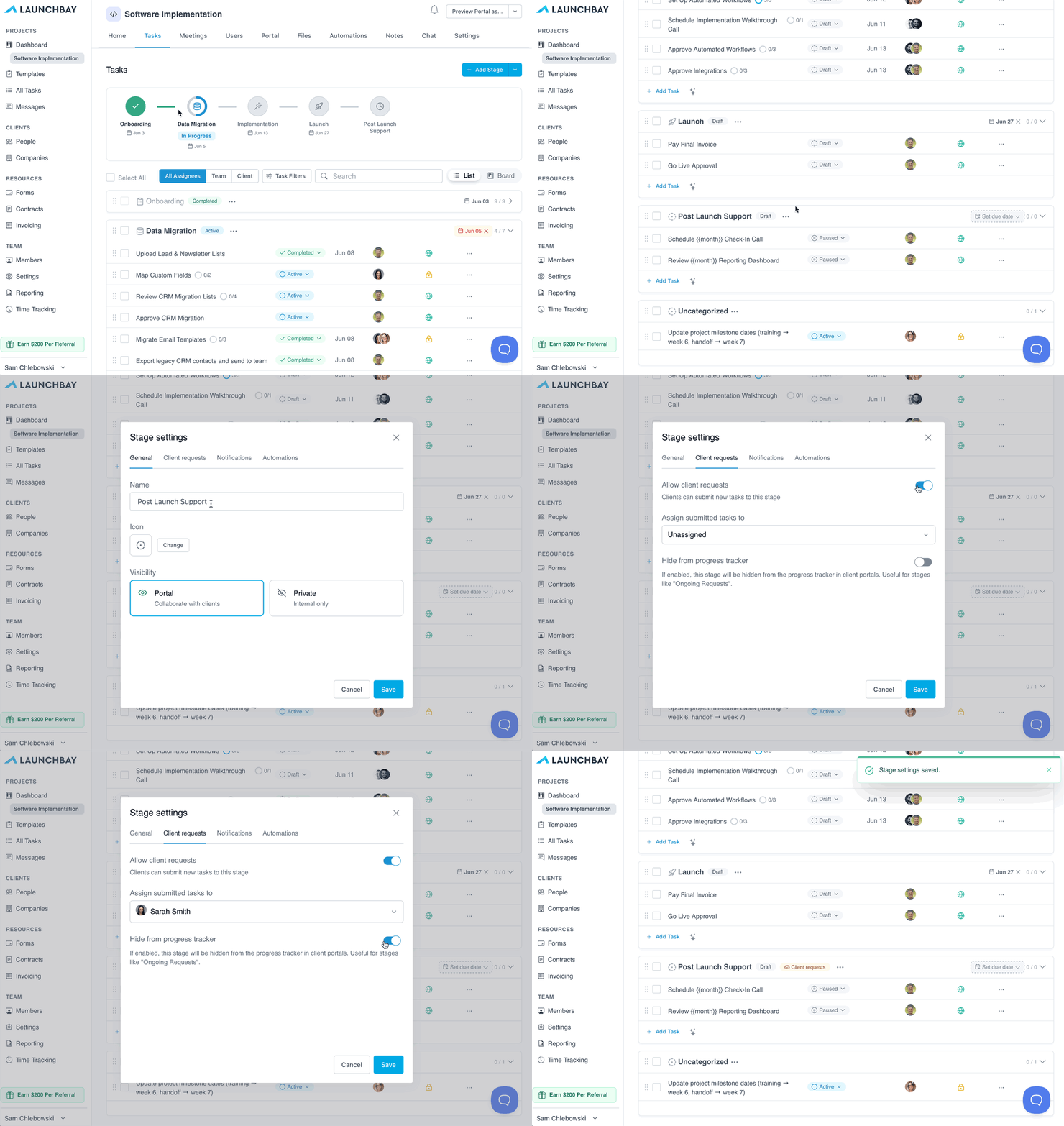
To configure Client Requests for a stage:
- Click the three dots next to the stage name and select "Settings"
- In the modal, click the "Client Requests" tab
- Toggle Requests on to allow clients to submit requests to that stage
- Select which team member submitted tasks should be assigned to
- Use the hide from tracker toggle if you'd like request tasks to be excluded from the Project Progress Tracker
How Clients Submit Requests
When Client Requests are enabled for a stage, clients will see a "Submit a Request" button at the bottom of that stage in their portal. When they click it, they'll be prompted to fill in:
- Title — A short name for the request
- Description — Details about what they need
- Due Date — When they need it completed (optional)
- Attachments — Any relevant files (optional)
📢 Note: Due date reminders are not automatically enabled on client-submitted tasks.
Once submitted, the task is saved to the project and assigned to the designated team member. It is visible to both your team and the client, so everyone stays aligned on the request and its progress.