
Send Meeting Notes to LaunchBay Using Zapier
If you're using an AI note taker like Fathom, Otter, or Fireflies to capture your client meetings, you can save time by connecting that tool directly to LaunchBay using Zapier. This integration allows your meeting transcripts to be automatically saved to existing meetings in your LaunchBay projects — no copy-pasting required.
Setup Instructions
Step 1: Add your Note Taker "New Transcript" trigger
To get started, head to your Zapier account and create a new Zap. For the trigger step, select the note taker app you’re using. After selecting the app, choose the "New Transcript" event as your trigger and connect your account to Zapier.
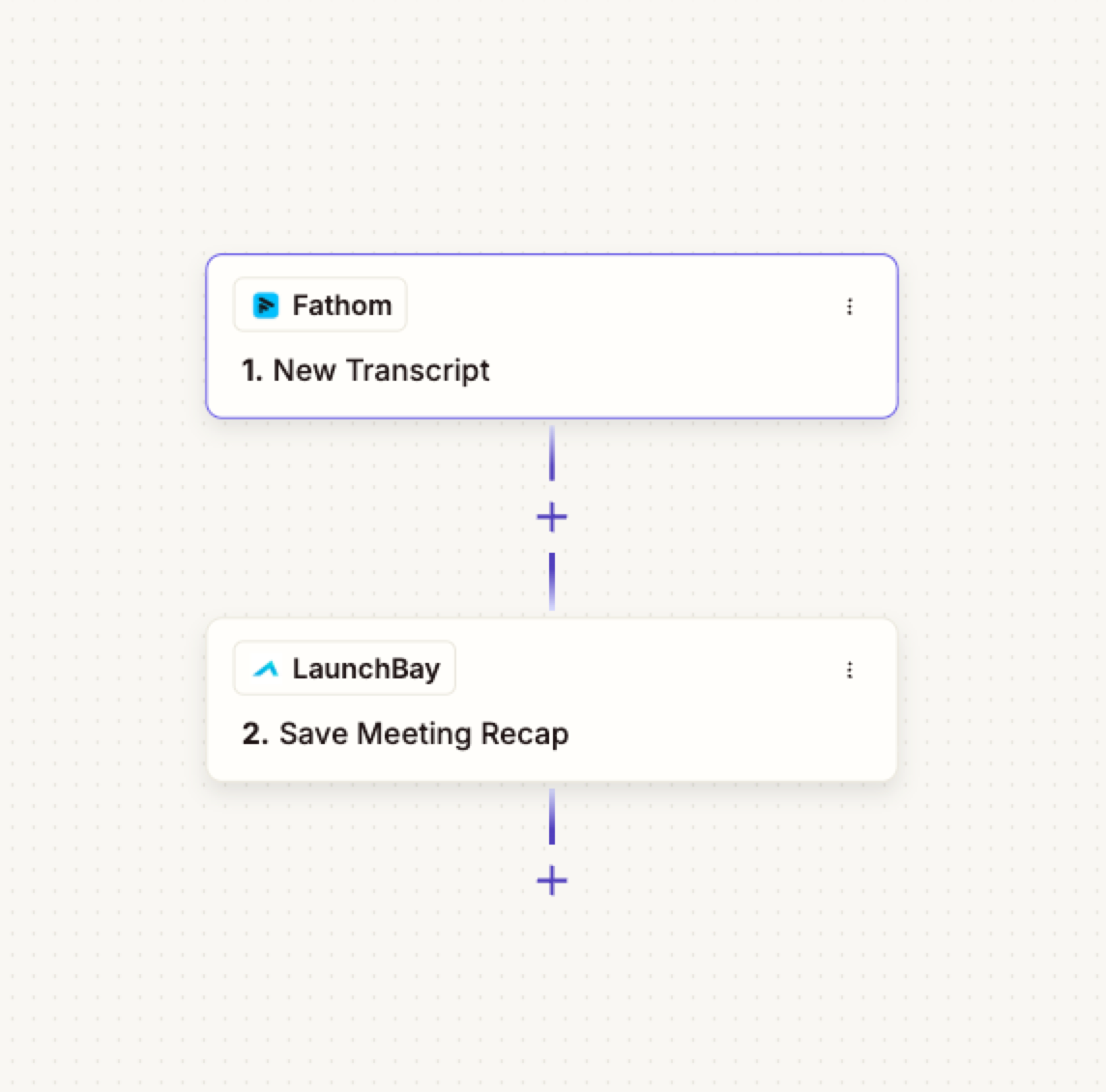
Step 2: Create a "Save Meeting Recap" action in LaunchBay
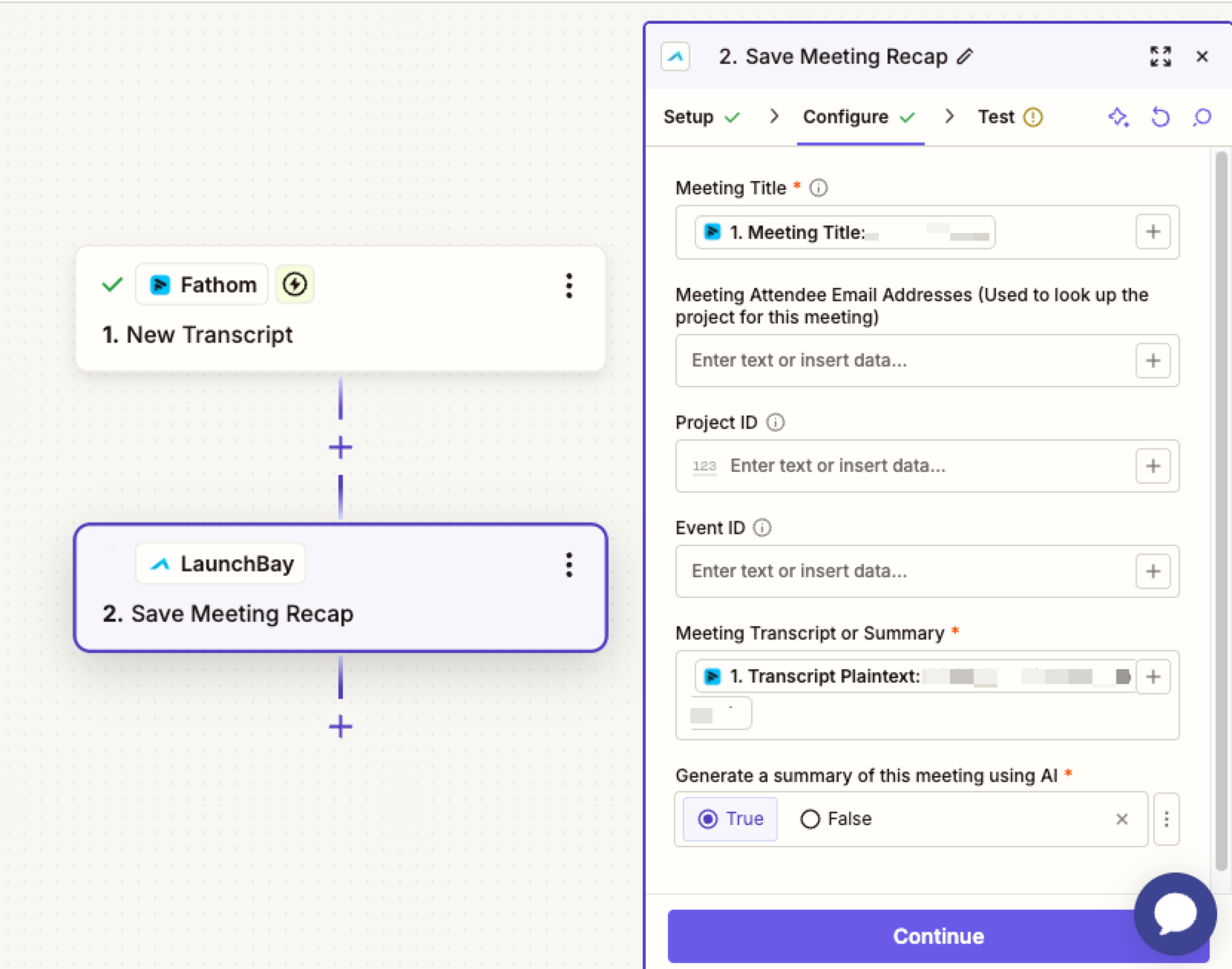
Next, add an action step and search for LaunchBay. Select "Save Meeting Recap" as the action event.
Once connected, map the following fields from your transcript trigger to LaunchBay:
- Meeting Title — Map this to the meeting title from your note taker
- Meeting Attendee Email Addresses — This helps LaunchBay identify the correct project to update.
- Project ID - optional field if you are using the "Find Project" step
- Even ID - If you used the Schedule Meeting Zap to create this meeting, enter the same event ID here to update that existing meeting rather than creating a new one.
- Meeting Transcript — Map the plain text transcript from your note taker here.
- Generate Summary using AI — Set to true if you'd like LaunchBay to automatically summarize the transcript and populate the Summary section of the meeting.
Two optional fields are available when configuring the Save Meeting Recap action:
- Share Summary in Portal — Set to true to automatically toggle the summary on for client visibility in their portal
- Share Transcript in Portal — Set to true to automatically share the transcript in the client portal
📣 Note: If your note taker doesn’t include email addresses or client identifiers, you can use
Zapier’s "Find Project" action to look up the appropriate LaunchBay project based on the project name or ID.
Once the Zap runs, the transcript will be saved to the matching meeting in your LaunchBay project. If AI summarisation is enabled, LaunchBay will process the transcript and populate the Summary section automatically. You can then choose to toggle the summary on to share it with clients in their portal.