
Trigger Automations via Form Submissions
LaunchBay’s automation features allow you to trigger actions based on how clients interact with forms—for example, when a form is submitted or when a specific field is filled out.
This is especially useful for streamlining workflows and ensuring clients only see what’s relevant to them. You can automatically activate, archive, or import tasks and stages based on a client's response to a specific question.
Step 1: Open the Automation Builder
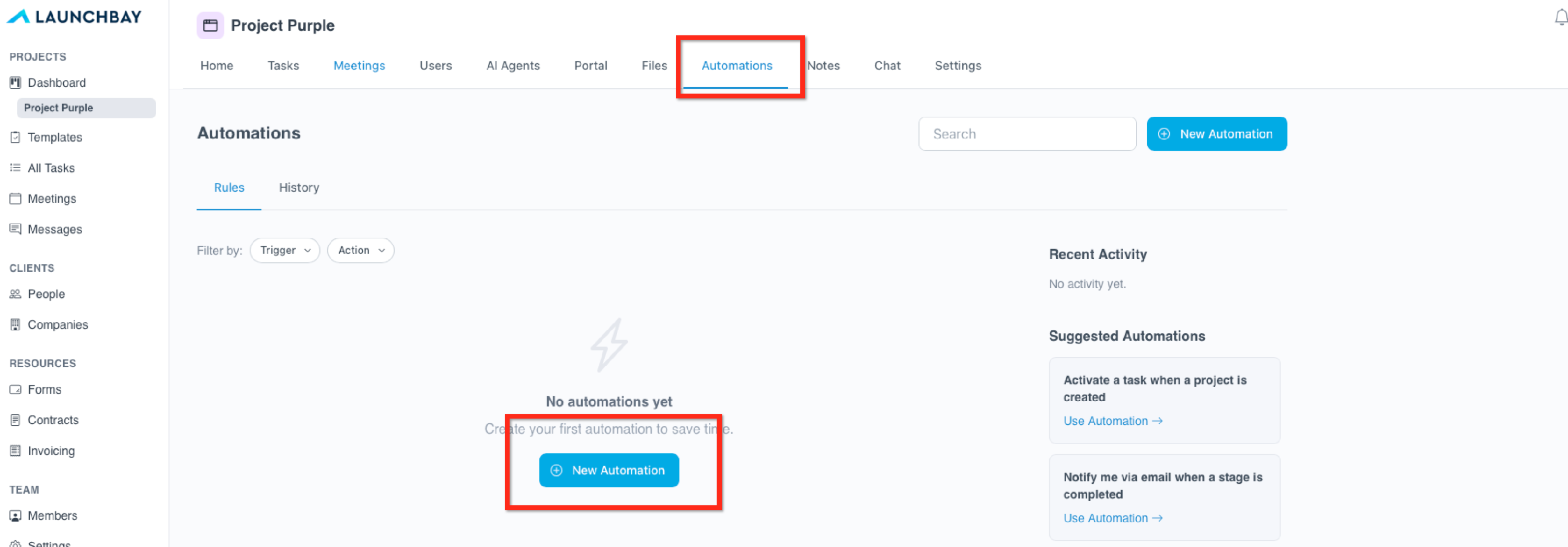
From your project or project template, click Automations in the top navigation bar. Then, click New Automation to create a new automation.
Step 2: Select a Form-Based Trigger
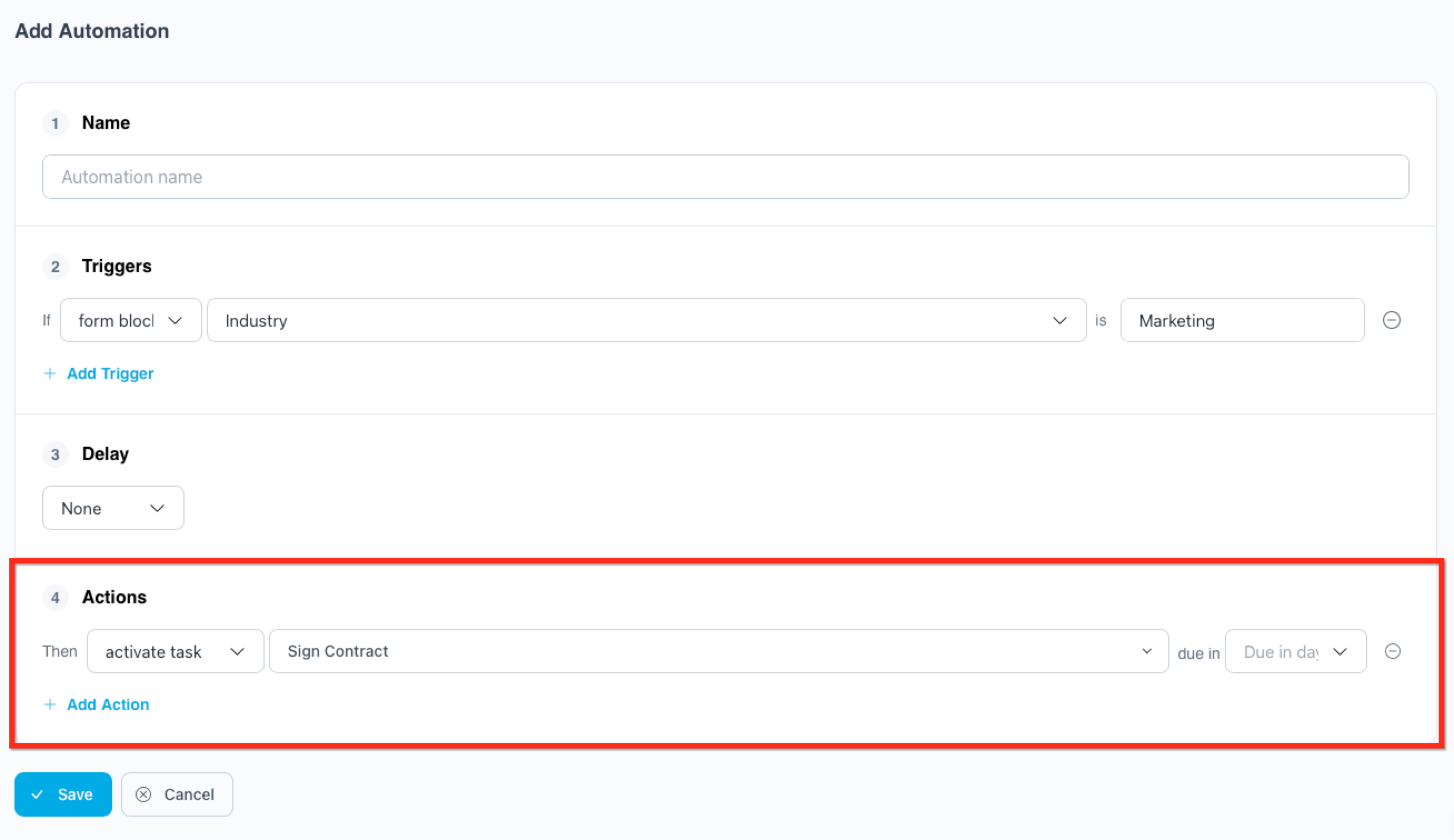
In the automation builder, set your trigger type to Form Block.
From here, you'll be prompted to:
- Select the form where the question, or form block, lives
- Choose the specific form block to monitor (e.g., a short answer, checkbox, or dropdown)
- Define the trigger condition by inputting one of the possible answers into the block value field.
In this example, the form block is used to identify an industry. One of the possible responses offered in the form was "Software", so that response can be used as an automation trigger.

📣 Note: The form must already be added to your project or template for it to appear in the automation builder.
Step 3: Add an Action
Once your trigger is set, choose what you want to happen automatically when the form condition is met. Common actions include:
- Activate or archive a task or stage
- Import a task or stage
- Show or hide a project tab
Depending on the action, you'll be prompted to specify additional information, like the name of the task.
Step 4: (Optional) Use the Delay field to delay the automation for a specific amount of time.
- Choose the Units: 1-30
- Choose the Unit Type: Hours, Days, Week, or Months
Click Save to finish. The automation will now factor in the specified delay before running whenever the form condition is met.
👋 Tip: Form triggers can also be combined with other automation triggers (like task completion or project creation) for more advanced workflows. This gives you even more flexibility to automate your client experience from start to finish. Learn more about Automations.