
Global Settings and Customizations for Client Portals
This article covers everything you need to know about editing the six default portal pages, along with other global customizations and settings you can configure from the Portals tab in your LaunchBay account settings.
👋 Note: The settings and customizations in this article apply globally to all client portals in your LaunchBay account. To create fully customized pages that clients can access in their portals—configured per project or per client—use Portal Pages. Click here to learn more.
Portal Pages
By default, every LaunchBay client portal includes four standard pages that apply globally across all client portals. These pages are:
- Home: Each client's "Home" page highlights any outstanding tasks your team has assigned that they must complete, along with information about the project(s) you invited them to.
- Activity: A dedicated page to view activity history and unread project notifications.
- Tasks: On the "Tasks" page, clients can view and complete the tasks that your team assigns them. When clients access this page, only the tasks your team assigned them are displayed.
- Invoices: Any active invoices assigned to the user will display here. If there are no active invoices, this tab will be automatically hidden.
Beneath the Projects section, clients will see a list of all Active or on-hold projects they have access to. From there, they can open any project to view all portal tabs and related tasks—regardless of assignment—along with the project’s Progress Tracker and any custom portal pages you’ve added.
Each project will also include 5 standard pages
- Overview: Each project includes an Overview page that displays the Progress Tracker, your team members assigned to the project, any welcome content you’ve added, and shared project resources (if enabled).
- Tasks: On the "Tasks" page, clients can view all tasks related to the project (regardless of whether or not they are assigned to them), along with a project progress tracker that provides clarity on the project's current status.
- Messages: From the "Messages" page, clients can access the chat interface for each of the projects you've invited them to, sending new messages or replying to previous messages sent by your team. You can rename this page if needed, and use the toggle to show or hide the page.
- Meetings: The "Meetings" page gives clients a dedicated space to view all scheduled and past meetings for the project. Clients can see meeting status, call-in details, and any agenda items or summaries you've chosen to share. Meeting requests will also appear here as well as on the project Tasks page. You can rename this page if needed, and use the toggle to show or hide the page.
- Files: The "Files" page of a client's portals allows them to access all files associated with the projects your team has added them to. You can rename this page if needed, and use the toggle to show or hide the page.
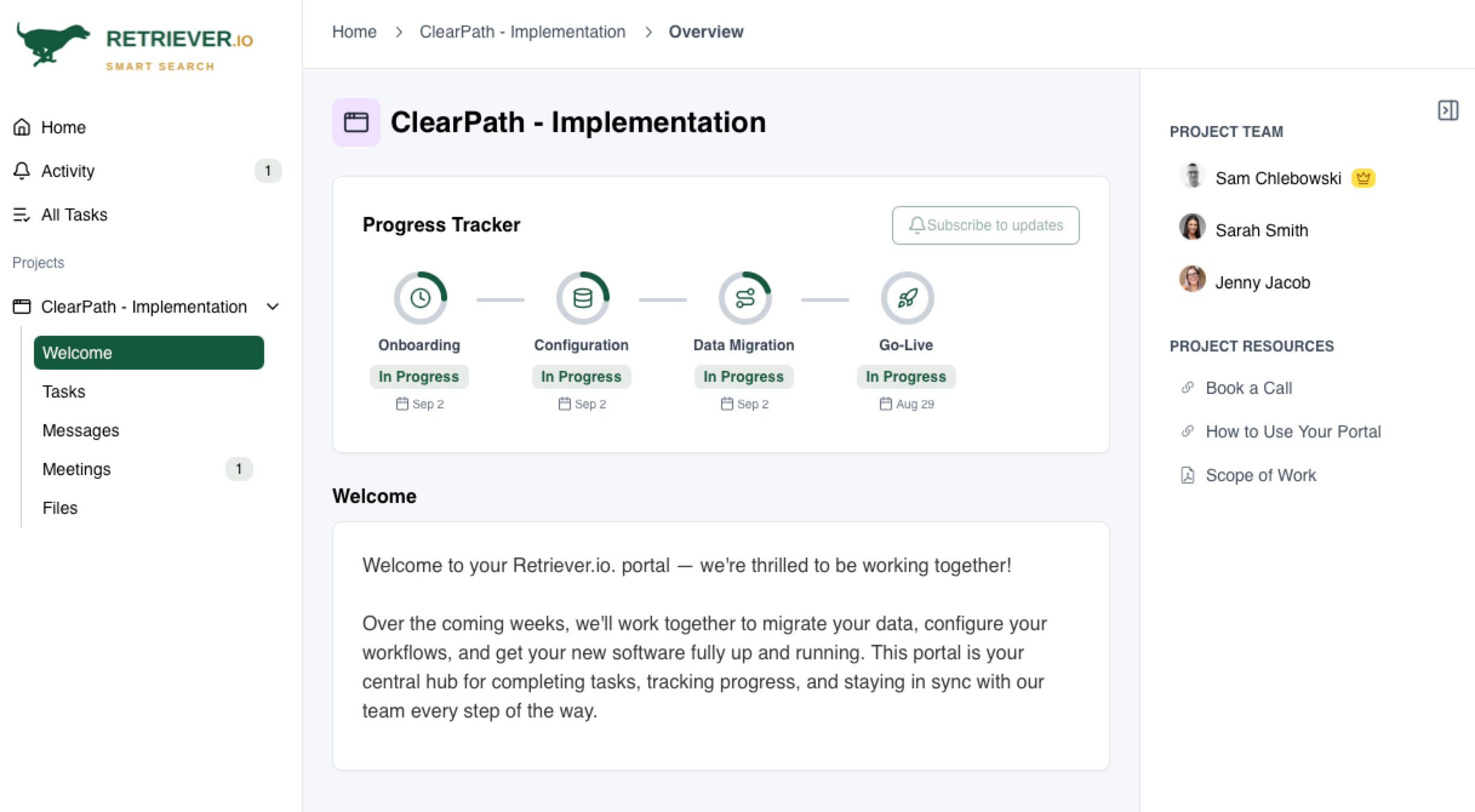
Renaming Portal Pages
To maintain consistency and usability, the 4 default portal pages cannot be renamed or disabled.
However, you can rename the project pages to better reflect your brand or client workflow. To rename one of these pages, go to your template or project Portal settings, select the page you wish to edit, enter your desired title, and save your changes.

Removing Portal Pages
If you would like to hide the Files, Meetings, or Messages pages from the client portals, you can do so by going to Settings in the project or template and clicking the Portals tab at the top. From there, you will be able to toggle the page visibility on-and-off.
Adding a Custom Header Image to Portals
From the “Portals” tab in your account Settings, you can upload a custom header image to better reflect your brand and create a more professional client experience. Once uploaded, the image will automatically appear across all portals.
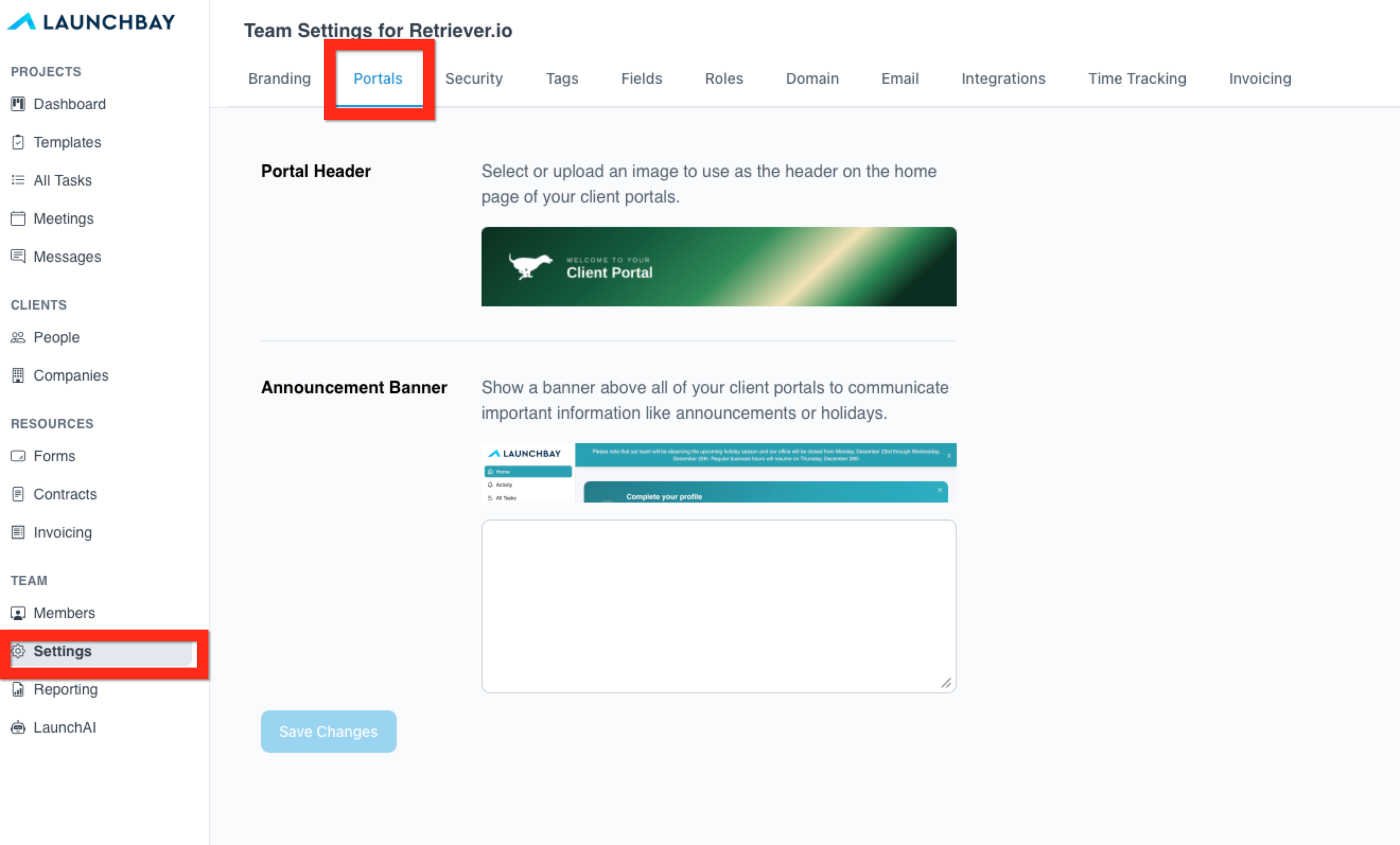
To add a custom header image go to Settings → Portals, then click Change Header Image to upload your file.
Want to display a notice across all client portals at once? You can set an account-wide banner announcement for things like holiday hours, planned maintenance, or service updates. Learn how to set up a portal banner.
Requiring Passwords for Portals
From the Portals tab in your account Settings, you can also choose to disable magic links and require clients to enter a password to access their portals and any projects they’ve been invited to. This is a global setting that applies to all client portals.
Click here to learn more about password-protected portals.