
Task Statuses
The status of each task helps your team track the overall progress of your client project and informs clients of what they must complete in their portals before additional work can be done for them.
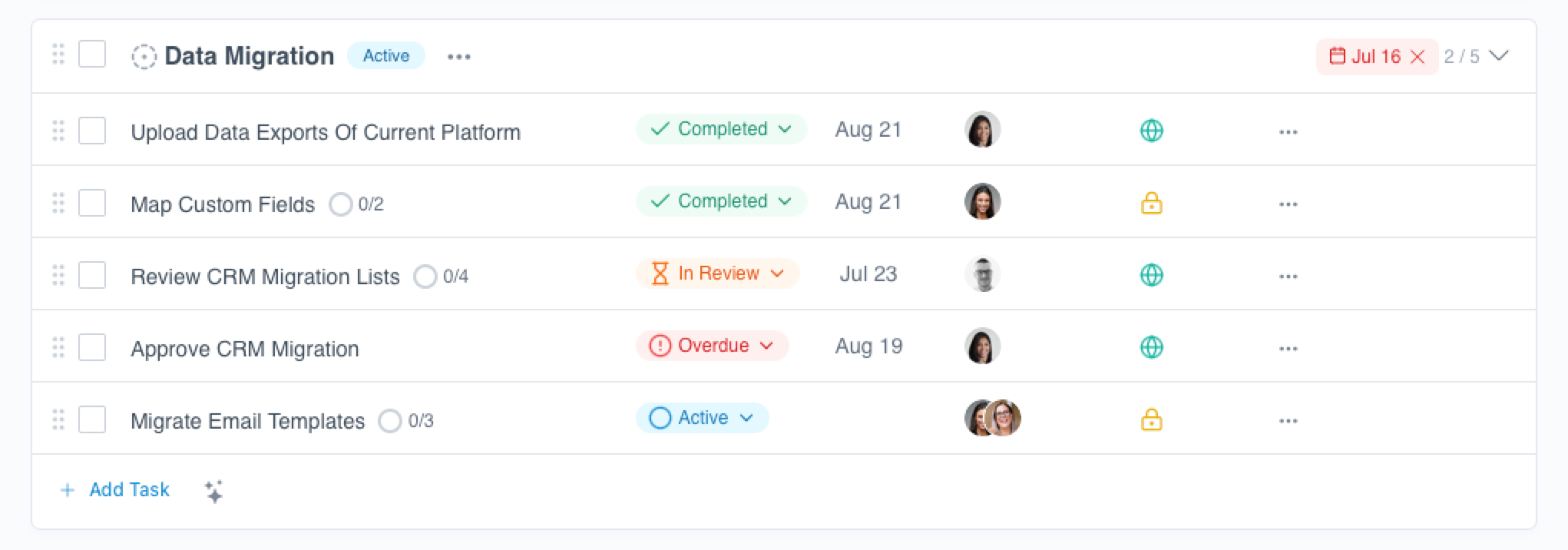
In this article, we’ll explain the different task statuses, detail what each status indicates, and explain how task statuses are updated as work progresses.
Task Status Definitions
Tasks in LaunchBay move through different statuses as they progress. Here’s what each status means and how visibility works for your team and clients:
- Draft: By default, draft tasks are only visible to your team, and clients cannot see them in their portals. If you turn on "Show draft tasks in client portal" in a project's settings, clients can see that project's draft portal tasks with a Draft tag, but they can't open or work on them until you activate them.
- Active: Tasks set to the "Active" status have been sent to the assignee and are ready to be completed. Active tasks are accessible to clients in their portals unless
- Completed: When a task is finished, its status automatically changes to Completed. Completed tasks are visible to clients in their portals, with the one exception of internal tasks where the "Hide from portal" option is toggled on.
- Note: Contract tasks complete automatically once everyone has signed, as long as the contract is the only thing the task asks for
- In Review: Tasks automatically move to In Review after clients complete a task for which your team has toggled on the Team Review option. Both team members and clients can see tasks set to the "In Review" status.
- Archived: If a task is no longer relevant, you can manually set it to the Archived status to remove it from your client's portal. While Archived tasks are not accessible to clients, they'll remain available to you and other team members on the project.
Tasks you create in LaunchBay project templates remain as drafts until you create a new project from that template and send those tasks. The exception is archived tasks: if you create a template from a project or import tasks into a template, any archived tasks stay archived. To unarchive one, click the three-dot menu (...) beside the task in the template and select Unarchive.
Note: Tasks you create in LaunchBay project templates remain as drafts until you create a new project from that template and send those tasks. The exception is archived tasks: if you create a template from a project or import tasks into a template, any archived tasks stay archived. To unarchive one, click the three-dot menu (...) beside the task in the template and select Unarchive.
How to Manually Update Task Statuses
While LaunchBay automatically updates task statuses based on activities like saving and sending and information like whether or not a task is completed, there may be times when you or a team member need to adjust a task's status manually.
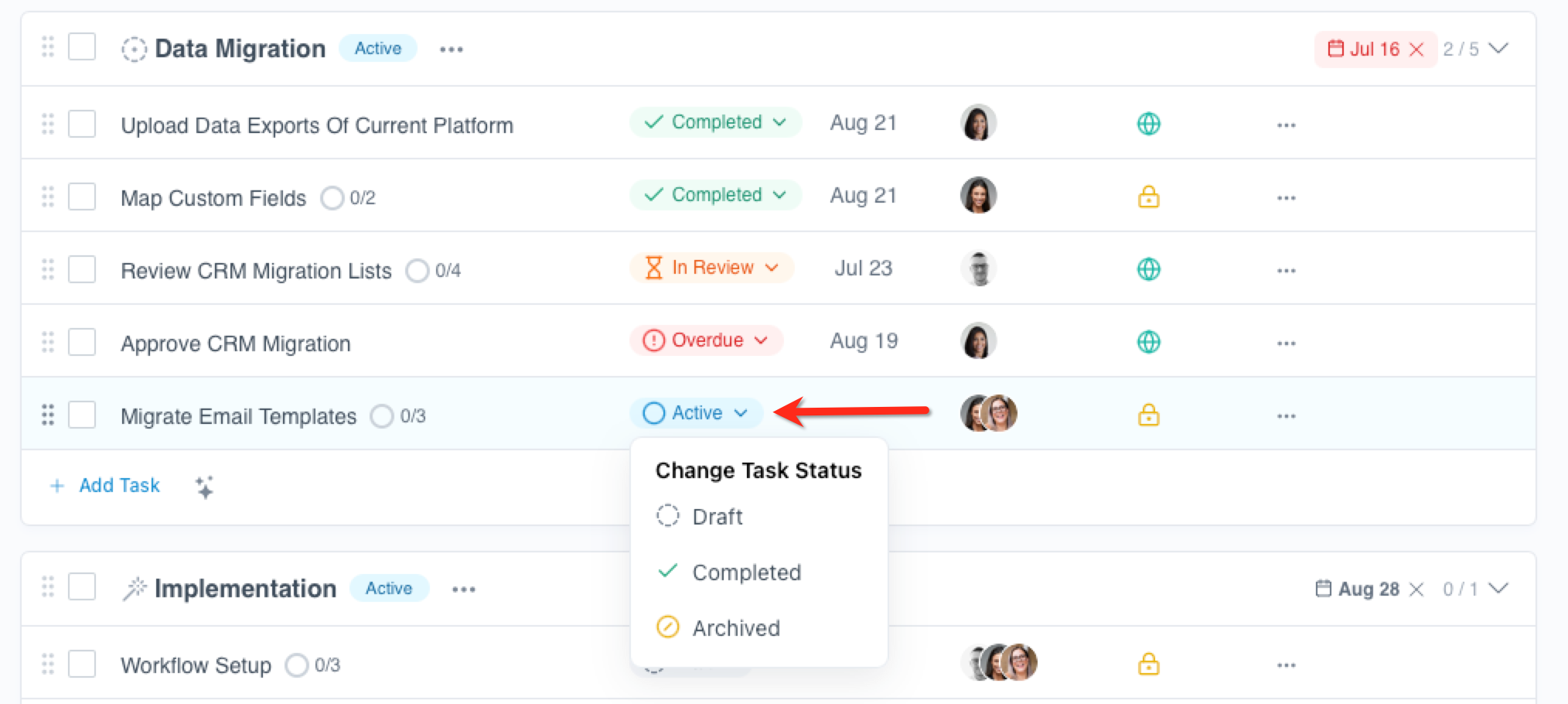
To manually update a task's status, navigate to it in your project's Tasks page, click the arrow on the right side of the task status label, and select a new status from the dropdown.