
Connect Calendly to LaunchBay Meetings
LaunchBay's Calendly Meeting integration lets you request meetings from clients directly within a project task. When a client books through the task, a meeting is automatically created in both LaunchBay and Calendly — complete with a call link, attendees, and agenda — without any manual setup in between applications.
Connecting Your Calendly Account
Calendly is connected at the individual team member level, not account-wide. Each team member who wants to use the integration must connect their own Calendly account.
To connect:
- Click your name in the bottom left corner of your LaunchBay account
- Select "Profile"
- Go to the Integrations tab
- Click "Begin Connection" in the Calendly section and follow the prompts to authenticate
Once connected, LaunchBay will automatically pull in all calendars and event types available in your Calendly account.
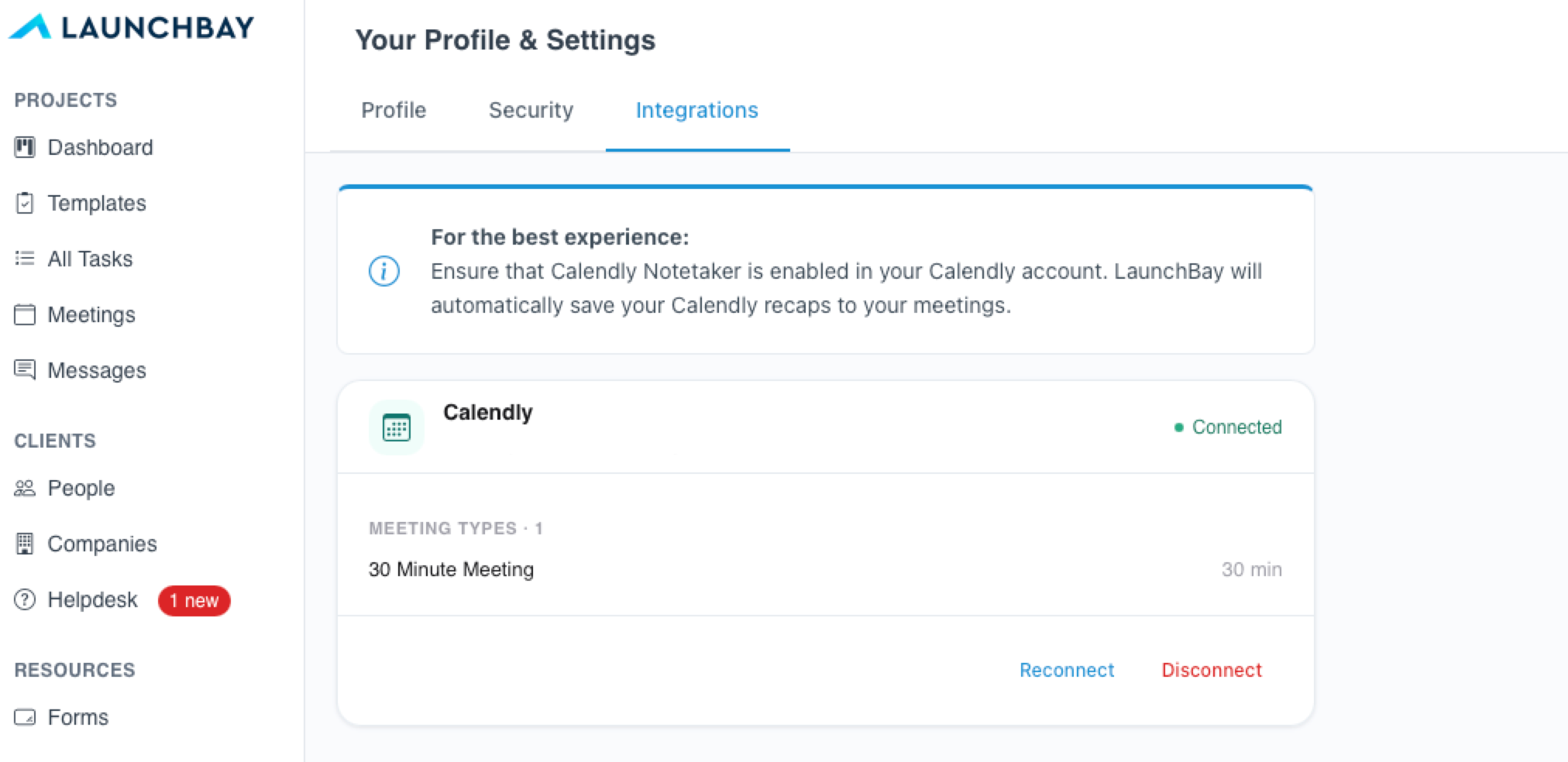
📢 Note: A paid Calendly account is required for this integration. For more on the integration from Calendly's side, see their LaunchBay integration page.
Requesting a Meeting from a Client
To request a meeting from a client, create or edit a task and select the "Request Meeting" option from the Schedule section of the task composer.
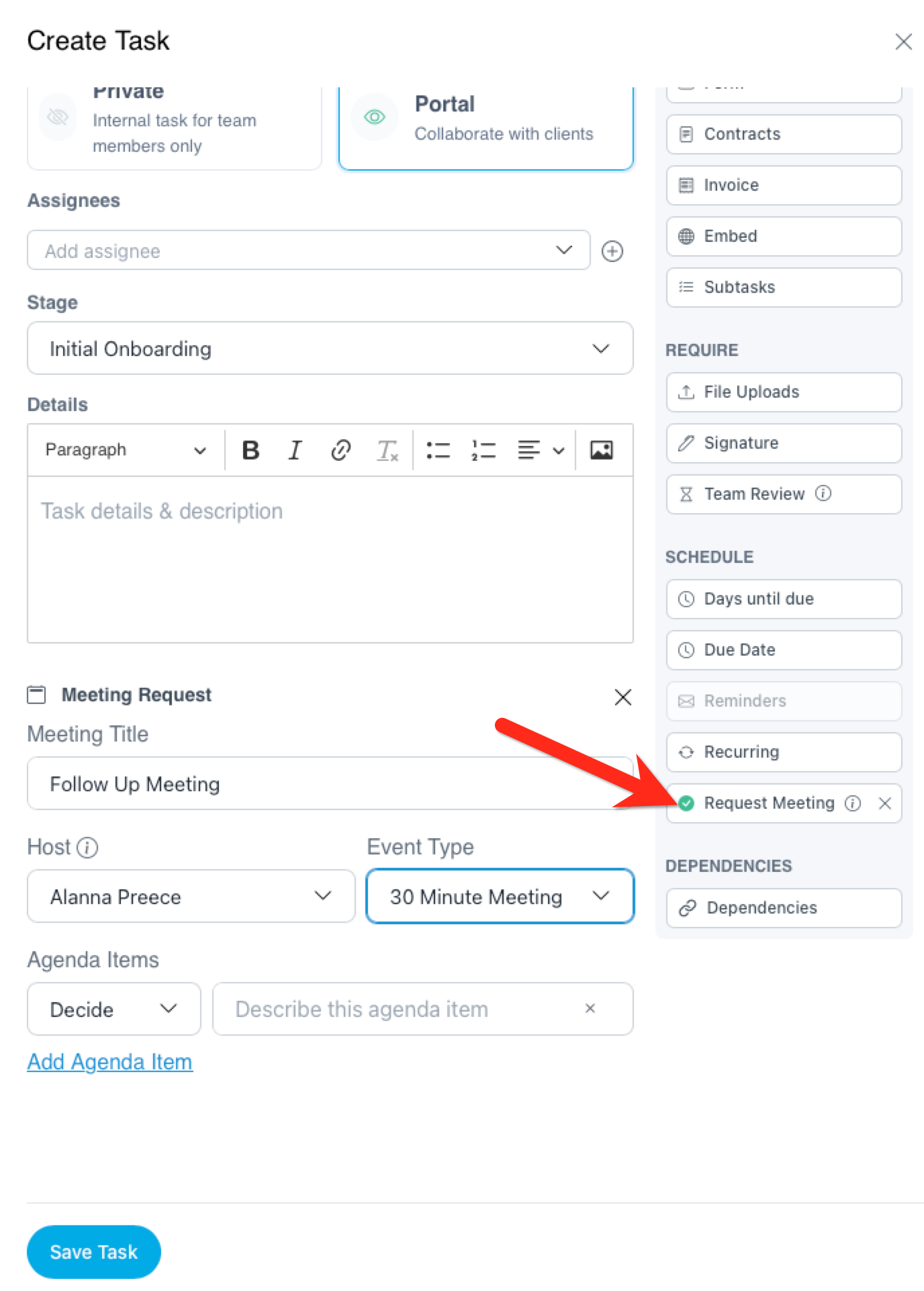
Configure the following:
- Meeting Title — The name of the meeting (e.g. Kickoff Call, Discovery Session)
- Host — Select the team member whose Calendly link will be used for scheduling
- Event Type — Choose from the event types pulled from the host's Calendly account
-
Agenda Items — Optionally add agenda items to the meeting ahead of time
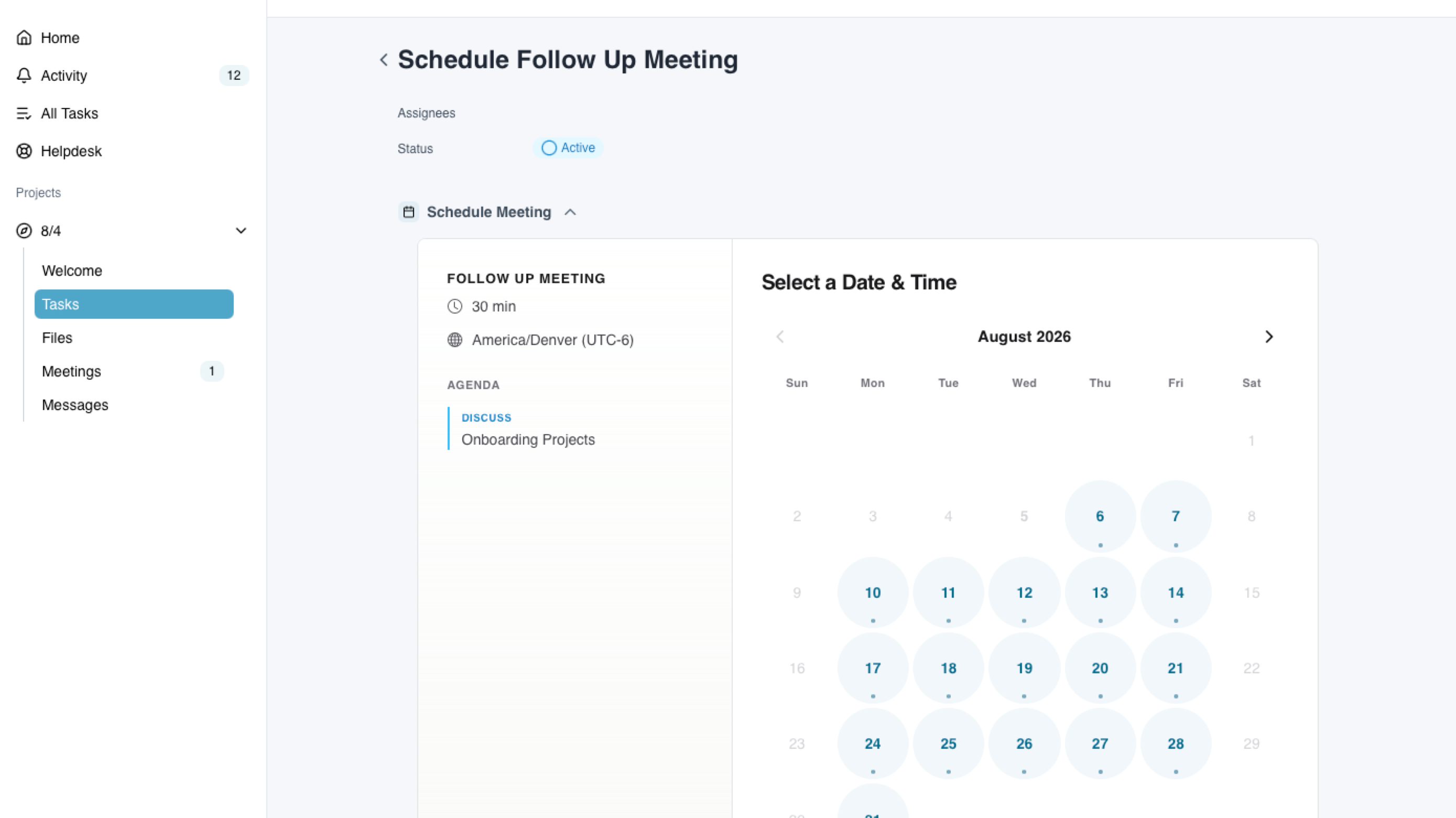
Once sent, the client will see a Calendly scheduler embedded directly in their portal task — no redirect to an external page. A notice will also appear on the Meetings page of their portal.
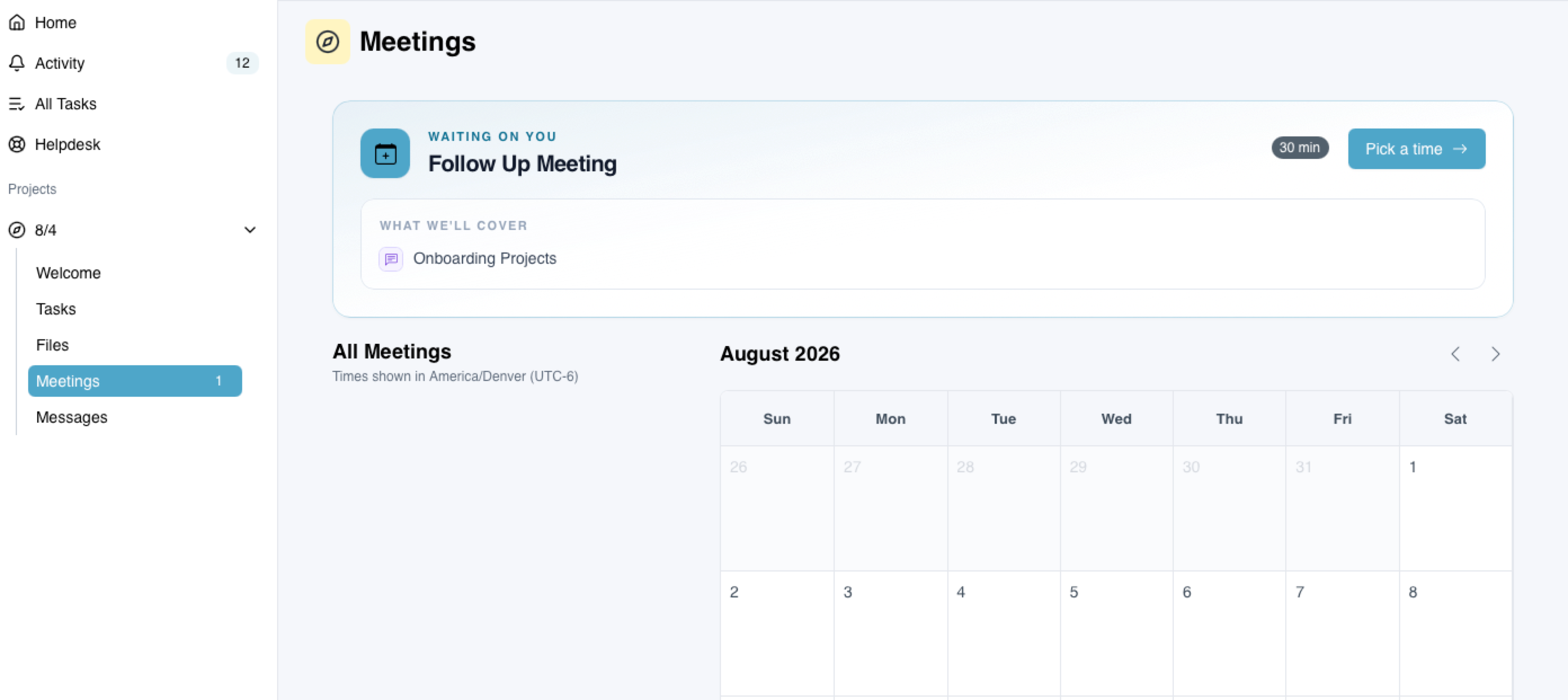
What Happens When a Client Books
When the client selects a time and books:
- A meeting is automatically created in the LaunchBay project with the call link, date, time, duration, and attendee details pre-filled
- The meeting is simultaneously created in Calendly
- The client's email address is used to auto-fill their attendee details
No manual entry needed on either end.
📢 Note: You can also embed a Calendly scheduler directly in a task using the Embed task option. Learn more about Calendly's embed options here.
This does not directly sync with LaunchBay meetings.
Rescheduling a Meeting
Reschedule from LaunchBay
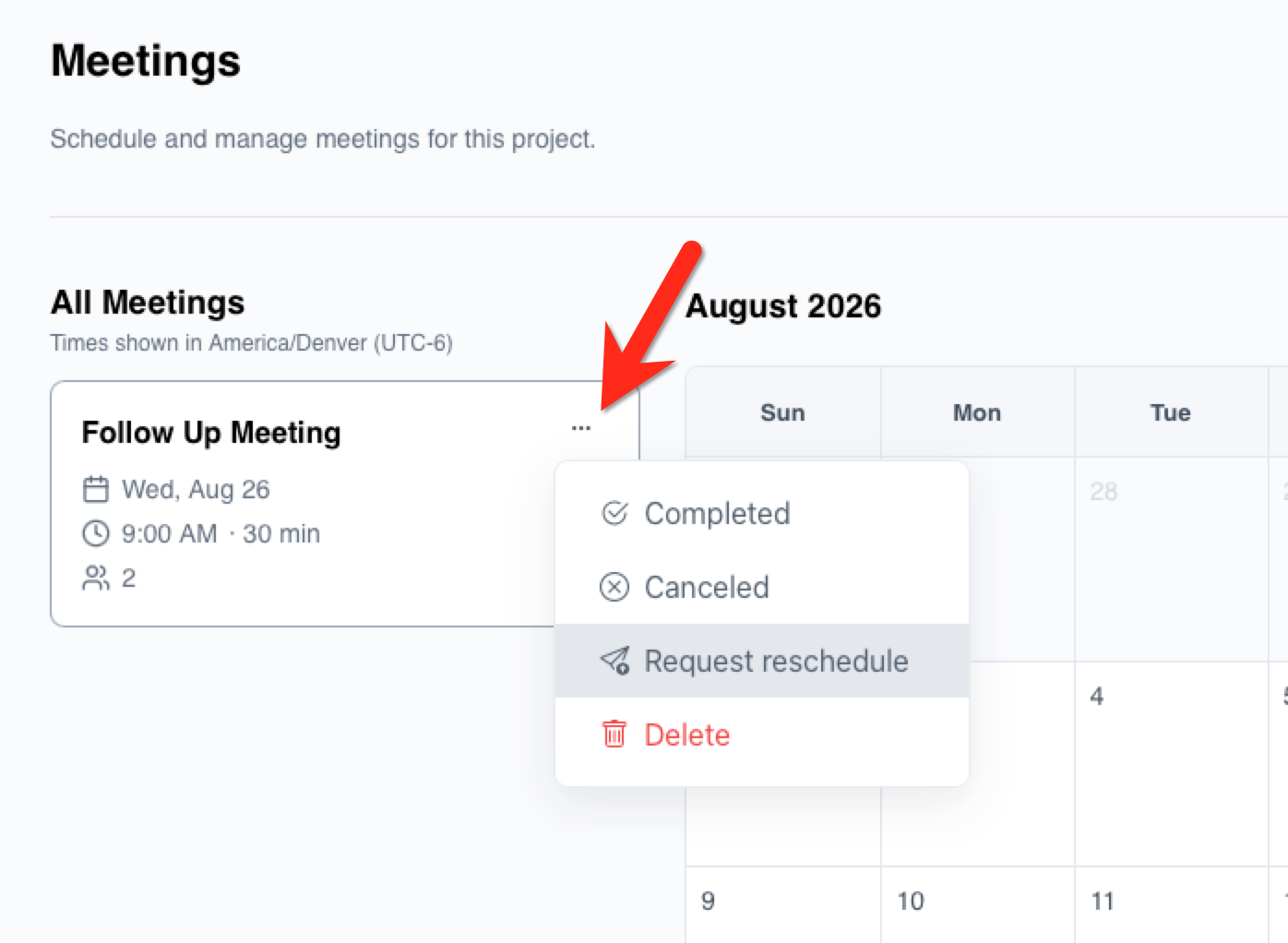
If the meeting needs to be rescheduled, open the meeting from the LaunchBay Meetings page and click "Request Reschedule." This reactivates the scheduling task for the client so they can select a new time. Once they rebook, the meeting details update automatically in both LaunchBay and Calendly.
Reschedule from Calendly
If the meeting is rescheduled directly in Calendly, LaunchBay will automatically update the meeting details on the LaunchBay side — no manual update needed.
Automatically Send Meeting Recaps to LaunchBay
If you use Fathom or Sybill and have connected it to your Calendly account, you can use Zapier to automatically send meeting transcripts and summaries to the corresponding meeting in LaunchBay.
👋 Tip: Use the Save Meeting Recap Zapier action to send transcripts from your AI note taker directly to the matching LaunchBay meeting. View setup guide.