
Client Portal Links
LaunchBay’s Client Portal Login Pages allow your customers to access their portals on demand—anytime, simply by visiting a dedicated URL. This article will explain how Client Portal Login Pages work in LaunchBay.
👋 Tip: Want to add a link to your LaunchBay Client Portal login page from your external website? Click here for a complete setup guide.
How Client Portal Links Work
As mentioned, LaunchBay's Client Portal Login Pages enable your business to give customers on-the-fly access to visit their portals at any time via a URL. To access your Client Portal link, navigate to the "Branding" Tab of your account settings page.
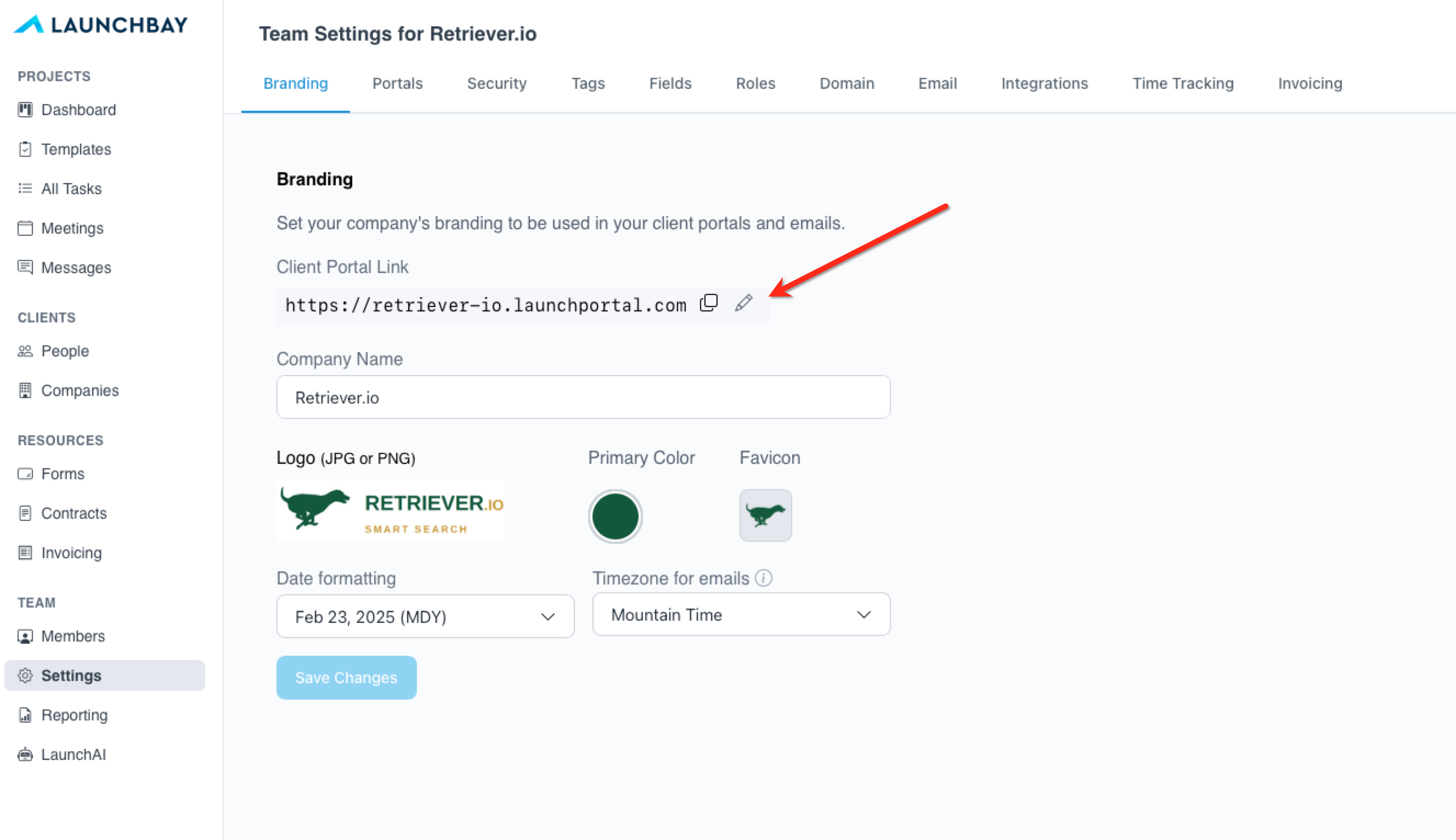
By default, Client Portal Login Pages utilize the subdomain and branding you set via your account's Settings page. The default URL for your Client Portal link is mybusiness.launchportal.com .
👋 Tip: Want to completely white-label your client login pages? Upgrade to the top tier plan to remove "Powered by LaunchBay" and use your business's domain instead of a LaunchBay subdomain.
Client Portal Login Pages for Magic Links
If you give clients loginless access to their portals via a magic link (the default option for all LaunchBay projects), customers who click your Client Portal Link will be brought to a page that looks similar to the one below:
After entering their email address on this page, clients will receive an email with a link they can click to access their portal without having to enter a username or password.
👋 Tip: Want to learn more about how magic links work in LaunchBay? Click here for a full guide.
Client Portal Login Pages for Password-Protected Portals
If you've enabled password-protected portals in LaunchBay, clients will be brought to a page that looks similar to the one below:

👋 Tip: Want to require clients to enter a password for your LaunchBay portals and need help getting started? Click here for a complete setup guide.